


A vocal can need firmer tuning while still relying on slides, vibrato and the way the singer approaches each note. Waves Tune Real-Time lets you shape that balance during playback or monitoring, without first drawing edits across a pitch graph. It is a useful choice for immediate correction and deliberate hard-tuned effects. Its main limitation is equally clear: when one word needs a different target note, a global automatic setup may need help from automation, note rules or a detailed editor.
Start with the melody, then the correction
The first decision is which notes belong in the performance. Root and Scale define allowed targets, while Range helps focus detection on the relevant register. Chromatic allows all twelve notes; it does not know which melody the singer intended.
Check the melody against the chords before choosing a scale from an analyser or a sample-pack label. A song can include passing notes, borrowed notes or a change in key. Removing a note that the singer intentionally uses can make an accurately detected performance sound wrong after correction.
Use a short passage containing a held note and a transition between notes. Listen with a pitched instrument from the arrangement. A soloed vocal can make it harder to distinguish a musically intentional bend from an incorrect target. Our FL Studio vocal-tuning guide covers the wider setup.
This review develops suggested exercises from the documented controls. The numbers below are starting values for your own recording, not measurements from a controlled product test.
Speed and Note Transition do different work
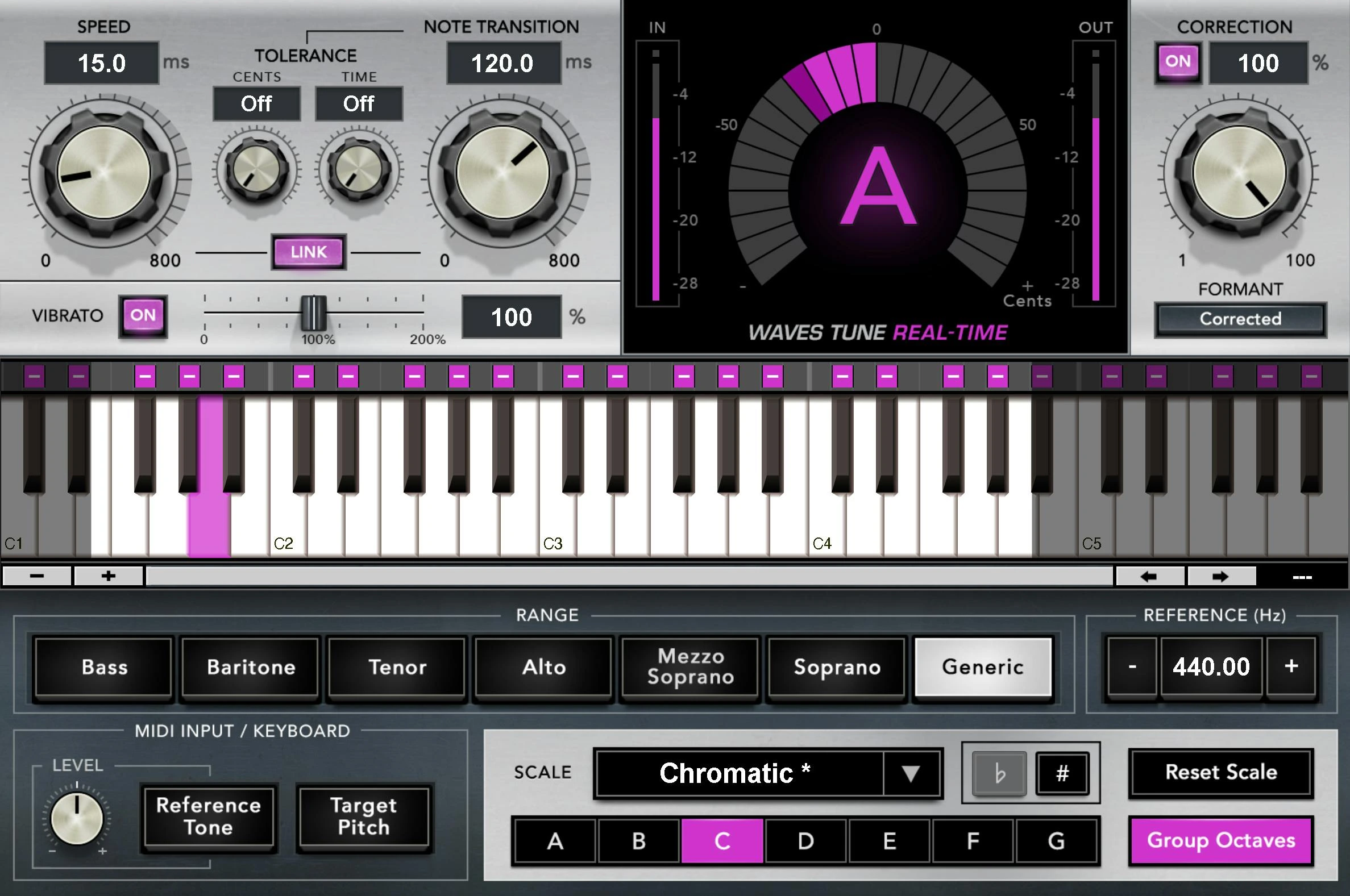
Speed determines how quickly pitch is corrected, including drift within a sustained note. Note Transition controls correction when moving to another target note. Faster settings can make the movement more quantized; slower transitions can preserve more of a glide. Link moves the two controls together.
For learning, leave Link off. Tighten a held vowel with Speed first, then play a phrase with two clearly different notes and adjust Note Transition. This makes it easier to hear which part of the performance each control changes.
If the held note settles well but a slide becomes a staircase, try a slower Note Transition without immediately loosening Speed. If transitions are musical but sustained vowels keep drifting, investigate Speed instead. Moving both controls every time hides that distinction.
The useful setting depends on how long notes last and how they are approached. A fast melodic rap line and a slow legato phrase can need different timing even when both are intended to sound natural.
A natural-correction exercise
Choose a mostly accurate phrase that needs small corrections. Avoid learning the plugin on the most damaged note in the song; it can push the whole setup toward an unnecessarily aggressive result.
- Set the appropriate Root and Scale, and check that the allowed notes include the actual melody. Choose a Range that includes the performance, or begin with Generic if unsure.
- Leave Link off. Try Speed around 30 ms and Note Transition around 80 ms as an initial listening experiment.
- Keep Vibrato on at 100% and Formant set to Corrected. Start with Correction at 100% so the timing choices are easier to identify.
- Replay the held note. Reduce Speed gradually if it remains too loose, then increase it slightly if the pitch contour starts sounding unnaturally flat.
- Replay the transition. Shorten Note Transition if the new note arrives too loosely, or lengthen it if the intended slide is chopped into steps.
- Check a quieter line and the chorus before deciding that the setup works across the performance.
Those timings are an audition point, not a definition of natural tuning. A singer with a fast intentional ornament may need different handling from someone sustaining a simple melody. Judge whether the line still communicates its original phrasing.
If one short event remains difficult, isolate that event before changing the whole setup. A local automation change or an edit in a note-based tool can be more controlled than weakening correction on every otherwise successful phrase.
Tolerance is about changing target notes
Tolerance Cents and Time alter when a transition to a different detected target is accepted. They can allow a small excursion or brief movement before Note Transition begins. They are not a general wet/dry control, and large values can interfere with intended short notes.
Establish the scale and basic timing first. If a held note briefly jumps to a neighbouring target, try one Tolerance control at a time. For example, audition a small Cents value such as 10, then compare with it off. In a separate experiment, try a short Time value such as 40 ms.
Replay both the troublesome wobble and the fastest deliberate note change in the phrase. A setting that protects the first event can prevent the second from responding as intended. Keep the smallest adjustment that addresses the actual glitch.
If the melody keeps landing on the wrong note, revisit the allowed notes and source performance before adding more tolerance. Delaying a bad target decision does not turn it into the intended melody.
Correction percentage, vibrato and formants
Correction % controls how much of the detected pitch correction is applied. At 50%, a required 40-cent adjustment becomes 20 cents. It is not an ordinary blend of a dry recording and a second fully tuned voice. Vibrato Depth scales the detected natural vibrato; 100% preserves its depth.
After establishing timing, compare a lower Correction amount if the pitch should retain more deviation. Listen against the chords: a softer effect can be attractive while still leaving a note farther from its intended centre than the arrangement tolerates.
For a sustained vocal, leave Vibrato on at 100% initially. Try less depth only if the existing movement needs restraint. Do not remove it simply because the pitch display moves; that movement may be part of an expressive performance.
Formant Correction aims to preserve vocal character while pitch changes. Start with Corrected, then audition the alternative as a creative choice rather than an automatic improvement. Timing, note selection and tonal character deserve separate comparisons.
A deliberate hard-tuned vocal
For an audible stepped effect, start from a clean single vocal and a confirmed scale. Try Speed between 0.1 and 5 ms and a short Note Transition, such as 5–15 ms. Keep Correction high. These are effect-building suggestions, not settings for every performance.
Listen to the rhythm of the pitch changes. If the line sounds fast but musically wrong, do not shorten timing further. Check whether the allowed notes fit the melody and whether a passing note needs its own treatment.
Compare Vibrato on and off. With it off, fast correction also acts on the small pitch movements that would otherwise be preserved. That can strengthen the synthetic character, but it may also make a held note less interesting than the production needs.
Build reverb, delay and distortion around the tuned result after the core effect works. An impressive effect chain can hide a wrong target until later in the mix. Save a simple version so you can return to the tuning decision without rebuilding everything.
Recording through it: distinguish the cue from the saved take
Tune Real-Time is intended for immediate correction, but the delay a singer hears depends on the complete system. The interface buffer, host and other plugins remain part of the path. A product designed for live use does not remove latency introduced elsewhere.
Check that the performer hears the intended cue rather than a distracting combination of direct hardware monitoring and delayed software monitoring. Listen with the actual recording chain enabled. Our FL Studio latency guide explains the broader troubleshooting process.
Confirm what your DAW records. Hearing an insert in the headphones does not necessarily mean the saved file includes it. Keeping the original recording available gives you room to change scale, timing or effect intensity later; print an effected version separately when that is part of the production workflow.
For a hard-tuned part, the cue can influence how the singer performs slides and note attacks. Establish the intended sound before the take, then keep the setup stable while recording rather than changing several controls mid-phrase.
Chain placement and source quality
Start with tuning before reverb, delay and vocal doubling, so the detector receives one clear performance rather than a mixture of pitched copies and tails. Compare other placements only when a specific production need justifies them.
Check the incoming recording for clipping, strong bleed or an accidental second voice. A pitch corrector is not a general cleanup tool, and aggressive noise processing can also change the source. Keep the cleanest useful vocal and judge the result through the whole chain.
Process harmonies on their individual tracks where possible. Several simultaneous notes are a different detection problem from one melody. A backing-vocal bus may sound tidy enough in solo while still producing unstable target decisions under automatic correction.
After adding compression and bright EQ, check the lyric's articulation again. Tuning does not replace de-essing, level control or the balance decisions in our vocal-mixing guide.
When you need a detailed editor instead
Automatic correction is efficient when one setup works for a phrase. A graphical editor becomes more attractive when you need to move one note to a deliberate target, reshape its drift or preserve a specific approach while correcting the middle.
Before buying another tool, identify the operation you cannot perform comfortably. Is the problem an incorrect target, an unusually long slide or a timing edit? Those needs are more useful than a generic claim that one product sounds professional and another does not.
Our Waves Tune vs Tune Real-Time comparison explains the automatic-versus-editing choice. For a broader alternative, the Tune Real-Time vs Auto-Tune Pro comparison considers the workflows beyond immediate correction.
Price and who should buy it
Waves listed Tune Real-Time at $34.99 on November 22, 2026, against a listed MSRP of $199. This is a promotional USD price before applicable taxes. Check current offers and existing bundle ownership, then confirm your host and operating system in the Waves requirements.
It suits producers who want immediate pitch correction, a responsive effect for melodic vocals and clear control over timing. Skip it if a tool you already own handles those tasks, or if your main need is detailed note-by-note repair. The useful purchase is the workflow that addresses your recurring editing or recording task.
Conclusion
Tune Real-Time works best when the allowed notes are right before the correction becomes fast. Learn Speed and Note Transition separately, use Tolerance only to solve a specific target-change problem and preserve the source recording. That gives you a clearer route to both restrained tuning and a deliberately synthetic vocal.
Technical reference: the current Waves Tune Real-Time user guide. Product information and USD price checked November 22, 2026. Numerical settings are suggested exercises, not measured test results.

