

Waves Tune Real-Time and Auto-Tune Pro 11 can both correct a vocal while it plays, but the buying decision changes when you need to fix one particular note after recording. We would start with Waves for an affordable automatic tuning workflow and consider Auto-Tune Pro 11 when detailed graphical editing is part of the job. The useful comparison is how quickly each gets your performance to the intended result, including the difficult phrase that a preset does not solve. A more expensive plugin is only better value when its extra editing tools earn their place.
This comparison covers Waves Tune Real-Time and Auto-Tune Pro 11. Antares also offers the separate product now called AutoTune, formerly AutoTune 2026; its feature set should not be substituted for Pro 11's. The settings below are exercises to try, not matched listening-test results.
Waves Tune Real-Time vs Auto-Tune Pro 11: Quick Comparison
| Task | Waves Tune Real-Time | Auto-Tune Pro 11 |
|---|---|---|
| Automatic correction | Real-time, key/scale-based workflow | Auto Mode with tuning response controls |
| Response controls | Speed and Note Transition | Retune Speed, Humanize and Flex Tune |
| Detailed note editing | No Pro-style Graph Mode | Graph Mode with local correction objects |
| Timing editing | Not the purpose of this product | Available in the Graph Mode workflow |
| Harmony creation | Not a Harmony Player replacement | Four-part Harmony Player |
| ARA integration | Not the workflow covered here | Supported in specific compatible hosts |
| U.S. purchase comparison | $34.99 checked November 17, 2026; stated regular $199 | Check current perpetual/subscription options |
| Our first reason to choose it | Affordable automatic tuning | Detailed editing after the automatic pass |
Waves Tune Real-Time: the controls that shape the result
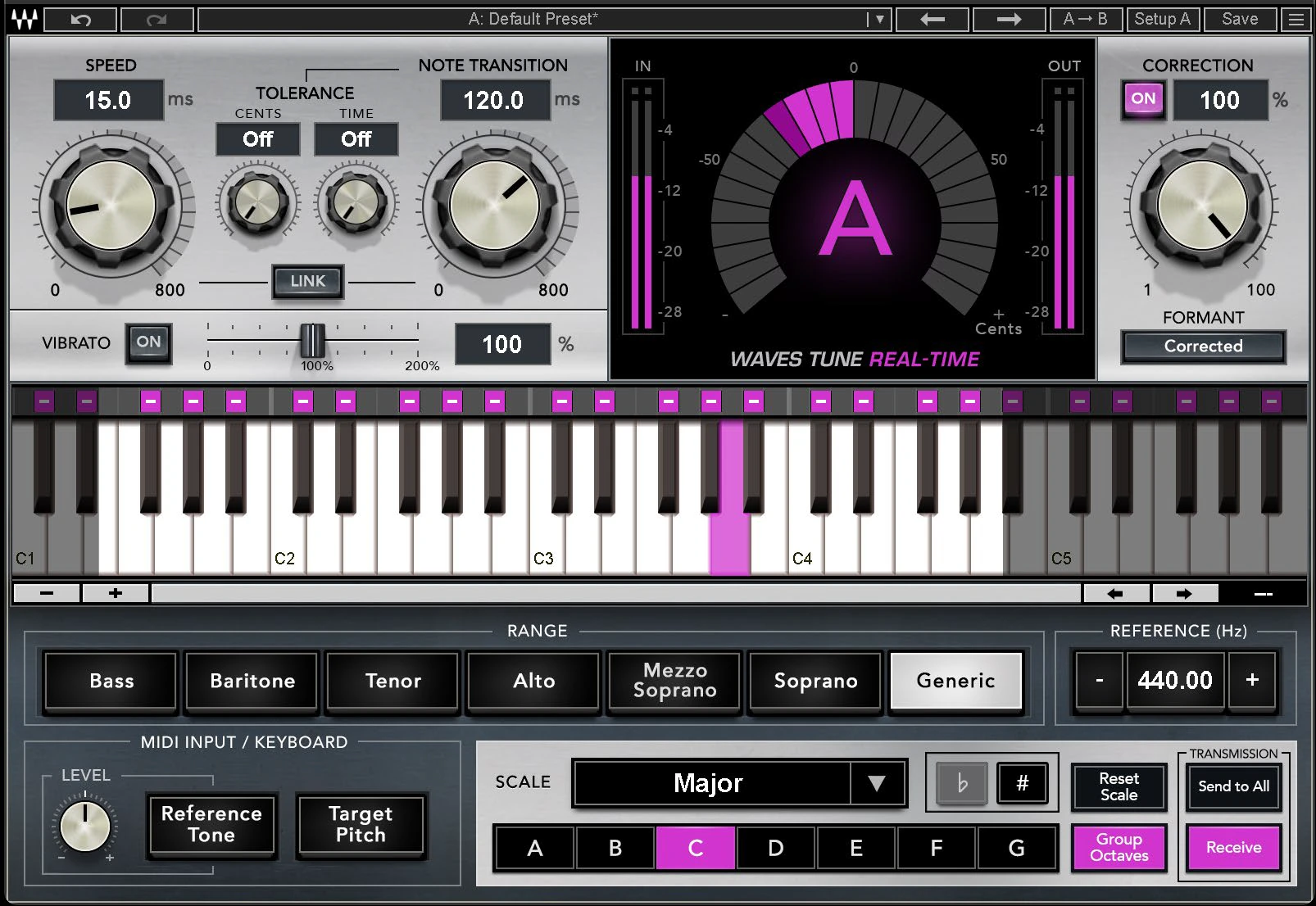
The Waves interface separates correction speed from the transition between notes. Speed affects how quickly pitch moves toward its target, while Note Transition shapes the response when the target note changes. That separation gives you two useful things to listen for: the center of a held note and the movement into the next note.
Before judging either control, choose the song's Root and Scale and check the permitted notes on the keyboard. A fast response to an unsuitable target is still an unsuitable correction. If a phrase sounds wrong, confirm the intended melody before making the correction stronger.
Start with the note list, then change the response
Pick a short phrase containing a clear stable note and a transition. Our first exercise would use a known key, an appropriate vocal Range, full correction for diagnosis and formant correction enabled. Keep an untouched copy available for comparison.
As a starting experiment, try Speed around 30–60 ms and Note Transition around 100–180 ms. These are SoundShaper trial values, not a universal natural-vocal preset. If the center remains loose, shorten Speed in small steps. If the movement between notes becomes too abrupt, lengthen Note Transition and replay the same transition.
Change one control at a time. A phrase can become more stable while losing an attractive slide, or preserve a slide while leaving the final note too loose. The separate controls are useful because they let you identify that trade-off rather than describe the whole result as simply more or less tuned.
Tolerance is a later adjustment
Waves provides Cents and Time tolerance controls for target-note changes. We would learn the basic response with tolerance off before using it to influence a phrase. Add another layer of decision-making only when you can describe what is going wrong.
For example, loop a boundary where the target appears to switch during a small vocal movement. Compare a modest tolerance change while listening to the next intended note as well as the troublesome moment. If the change helps one transition but delays another, a phrase-specific edit or automation decision may be clearer.
Auto-Tune Pro 11: Auto Mode and the editing workflow
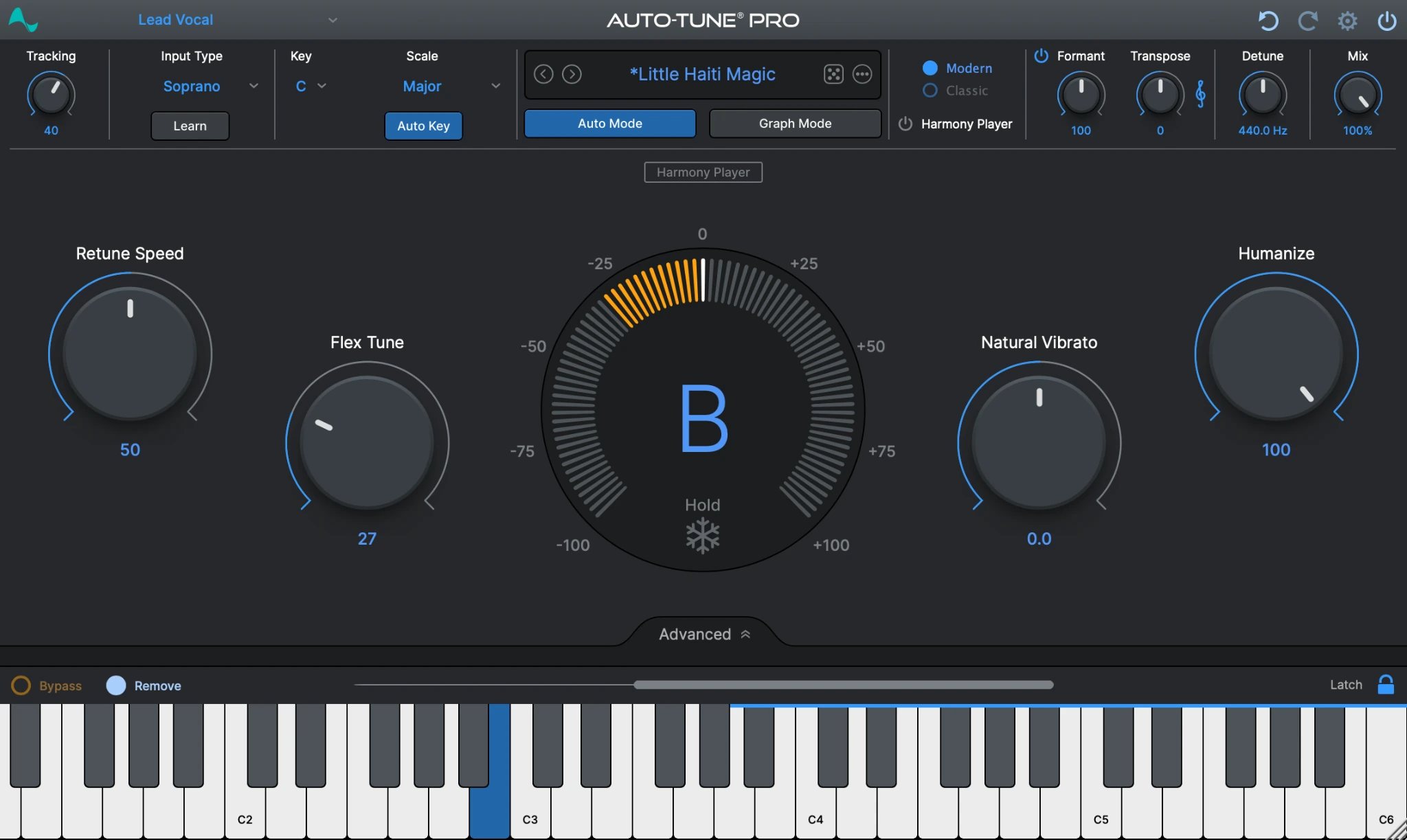
In Auto Mode, the main controls include Retune Speed, Flex Tune and Humanize. Choose the appropriate Input Type and song key first. Then use the response controls to decide how strongly the performance is pulled toward the permitted pitches.
Retune Speed is the first parameter we would explore. Humanize is useful to investigate when a setting that helps short notes makes longer notes feel too static. Flex Tune provides another way to leave some of the singer's movement available. Their numbers are not a translation of Waves' Speed and Note Transition settings.
A fair comparison therefore does not mean entering 30 in both plugins. Build an acceptable result in each, match the level and compare the musical outcome. Matching labels or approximate values cannot establish that the correction behavior is equivalent.
Use Graph Mode when the intention needs a local decision
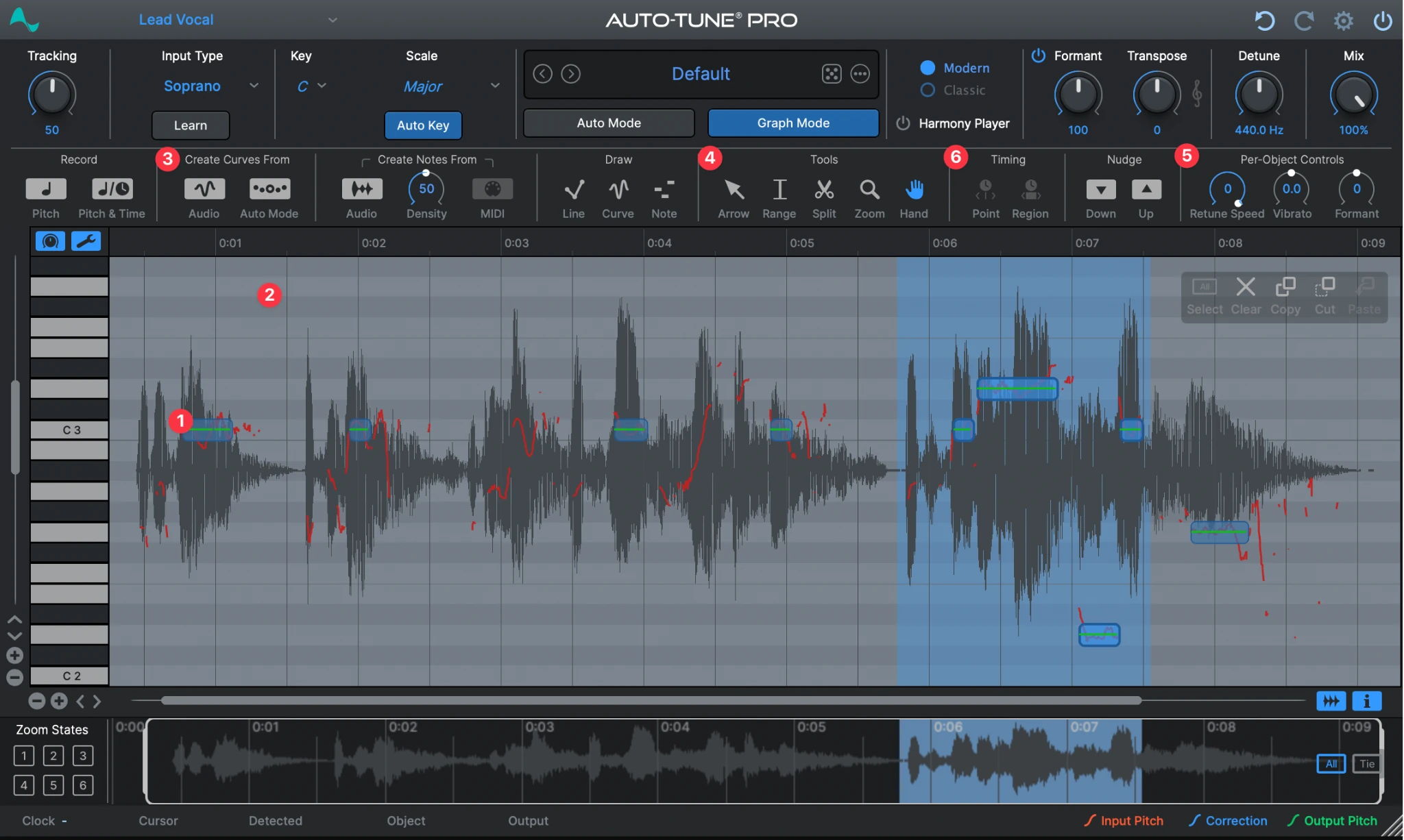
Graph Mode displays the tracked performance and correction objects. Its note, curve and line editing tools let you address a passage after recording. Pro 11 also includes timing tools, so the editing workflow extends beyond changing one global automatic response.
For a first exercise, work on a copy of a take with one obvious wrong destination note. Select Graph Mode, acquire the audio using the appropriate host workflow, locate the phrase and adjust only that problem. Leave a good scoop and the surrounding timing alone.
Now replay from before the edit, with the backing track. A correction that looks centered can still make the word sound detached from the singer's approach. Our preference would be the smallest local change that repairs the intended melody without forcing every neighboring gesture into the same shape.
Which should you choose for an obvious tuned effect?
Both support pronounced automatic correction. For Waves, audition minimum Speed and Note Transition; for Pro 11, audition a fast Retune Speed with the intended notes enabled. Back away from the extreme if transitions spoil the rhythm or intelligibility.
On melodic rap, check the movement from a spoken pickup into the pitched vowel. A clear melodic delivery is a better input than expecting a tuner to invent notes from unpitched speech. Pro 11 is not essential solely to obtain a hard-tuned effect; pay for its editor when you need local corrections.
Recording latency: compare the complete monitoring path
Waves' manual distinguishes reported host latency from the dynamic detection and correction delay, which it describes as roughly 0–4 ms depending on pitch. That does not make the complete recording setup delay-free. Your interface, buffer and other plugins still matter.
Auto-Tune Pro 11 also documents a low-latency option. Treat that as a feature to test in the actual tracking session, rather than assuming that two low-latency descriptions establish identical monitoring behavior.
Our practical test would keep the microphone, interface, sample rate, buffer and vocal phrase unchanged. Remove unrelated high-latency processing from the monitoring route, compare each tuner separately and ask the singer whether the response distracts from timing or articulation.
Check for simultaneous direct monitoring and delayed software monitoring. Hearing both can create a doubled or phasey sound that is easy to blame on tuning. Our FL Studio latency guide explains how to investigate the wider signal path.
A session that is comfortable with one vocal and no arrangement may behave differently with a large production open. Repeat the useful part of the test in the project you intend to record, without turning the exercise into an unsupported CPU benchmark.
How the comparison changes in FL Studio
For automatic tuning, route the vocal to its own Mixer insert and load the tuner as an effect. Keep the first comparison simple: a dry recording, one tuner and a known key. Add the rest of the chain after you understand the correction behavior.
Waves recommends placing Tune Real-Time before other effects. That is a good starting point for the comparison because the detector receives the vocal before reverb or other processing complicates the source. Keep your original take available before committing any printed effect.
For Pro 11 Graph Mode, distinguish the normal audio-tracking workflow from ARA integration. Antares advertises ARA2 support for specific hosts including Logic, Studio One and Cubase/Nuendo. Do not assume that an FL Studio insert receives the same instant timeline integration.
Our first FL Studio evaluation would therefore include the acquisition and editing steps, not just Auto Mode. If graphical correction is the reason to spend more, confirm that the complete process is comfortable in your DAW before buying.
For a broader walkthrough of the automatic side, see how to use autotune in FL Studio. Keep the key and source recording consistent when comparing its suggestions with this article.
Four situations where the right choice changes
| Situation | What matters | Where to start |
|---|---|---|
| Recording a tuned hook live | A comfortable monitoring setup that lets the singer perform naturally. | Audition Waves first, and keep an untouched dry take. |
| Fixing one difficult note | A local edit that leaves the surrounding phrase intact. | Test Pro 11 Graph Mode. |
| Changing key mid-song | Different allowed notes in different sections. | Plan changes to the note list and audition the transition. |
| Creating harmony parts | Additional creative tools beyond automatic tuning. | Consider Pro 11’s four-part Harmony Player. |
For the exact tuning controls, see the Waves and Pro 11 sections above. The decision here is about the job the session requires, not which plugin has the longest feature list.
Price, licenses and what we would pay for
Waves listed Tune Real-Time at $34.99 against a stated regular price of $199 when checked on November 17, 2026. Offers can change, so use the current-price button before deciding. A low sale price only helps if automatic tuning is the workflow you need.
For Auto-Tune Pro 11, compare the current perpetual-license and subscription options on Antares' product page. We are not using a fixed Pro 11 dollar price here because an equivalent current U.S. checkout offer was not verified. Existing subscribers should check their included products before purchasing another license.
Waves' perpetual licenses include one year of Update Plan coverage, with the owned version remaining yours after expiry. Future updates are a separate consideration. Antares' FAQ describes Pro 11's purchase and subscription routes; check the terms attached to the specific offer you choose.
Our value judgment is straightforward: pay for an editor if you regularly need detailed editing. If a simple automatic setup already gives you the intended result, spend the difference on the next actual bottleneck in recording or production.
How to compare both without fooling yourself
- Choose one dry, isolated lead-vocal take with a sustained note, a transition and a troublesome phrase.
- Use the same key, scale, source level and monitoring route in both setups.
- Build a suitable result independently in each plugin rather than matching control numbers.
- Match final loudness and alternate between the complete chains in the arrangement.
- Make the difficult phrase acceptable and record how many additional steps that requires.
- Save both settings and return later to check whether you can still explain the decision.
Write down musical observations: a slide is too abrupt, a word lands on the wrong pitch or an ending loses movement. Those observations tell you which control or editing workflow to investigate. Statements such as more professional or more expensive sounding do not identify the next useful change.
When pitch correction sounds wrong: what to adjust first
A plugin comparison becomes useful when it helps diagnose a real vocal, not just list knobs. Use this table after confirming that the source is an isolated vocal and the key, scale and permitted notes match the song. Each fix is a starting point to audition on the same phrase, not a guaranteed preset.
| What you hear | Try in Waves Tune Real-Time | Try in Auto-Tune Pro 11 |
|---|---|---|
| A word snaps abruptly into the next note | Lengthen Note Transition to preserve the slide. Change Speed separately so a held note can remain stable. | In Auto Mode, compare a slower Retune Speed and more Flex Tune. Use Graph Mode if only one transition needs surgery. |
| The tuner consistently picks the wrong note | Check Root, Scale and individual permitted notes before increasing correction. A fast response cannot fix a wrong target. | Check Key, Scale and allowed notes. If just one phrase needs a different destination, correct it locally in Graph Mode. |
| A sustained vowel wanders, but the note entrance is fine | Try a slightly faster Speed while leaving Note Transition alone. Listen for over-tightening. | Compare Retune Speed and Humanize on the long note; protect natural movement rather than forcing a perfectly straight pitch. |
| A natural vibrato disappears | Check Vibrato On and audition a depth around 100%, which preserves natural pitch modulation according to Waves. | Back away from excessive automatic correction and audition Humanize or Flex Tune while listening to the whole sustained note. |
| One difficult word forces an unnatural setting on the whole verse | Split that phrase onto a separate clip or track with its own instance or settings instead of overtuning everything. | Use Graph Mode to edit the local note or pitch curve while keeping the surrounding performance intact. |
For either product, avoid diagnosing the result only from a pitch display. Listen for the start of each word, its transition into the vowel and the singer's intended vibrato. A small pitch imperfection that keeps the phrase expressive may work better in the song than a perfectly flat, artificial result.
A 2026 buying detail: AutoTune and Auto-Tune Pro 11 are different products
Antares changed its product naming in 2026. The streamlined product previously called AutoTune 2026 is now named AutoTune; Auto-Tune Pro 11 remains a separate product with Graph Mode, detailed pitch and timing editing, and Harmony Player. That matters when comparing prices or reading a tutorial, because a feature advertised for Pro 11 may not be included with a different AutoTune purchase.
Before checkout, verify the exact product name, whether you are buying a perpetual license or subscription access, and which editing features are included. See Antares' explanation of the naming change. Do not assume that a cheaper product with a similar name is a discounted Pro 11 license.
Check the product and source recording
Waves Tune Real-Time is a different product from the Waves Tune editor. This comparison concerns an isolated monophonic vocal; neither automatic workflow here is a method for independently correcting several singers in a mixed recording.
Conclusion
Choose Waves Tune Real-Time if you want affordable, straightforward automatic correction for recording or mixing vocals. Choose Auto-Tune Pro 11 if you routinely need precise Graph Mode edits, timing changes or its additional creative tools. The earlier workflows and troubleshooting table show where that difference matters in practice.
For a comparison with a different style of note editor, see our AutoTune vs Melodyne guide. If you need a complete vocal chain rather than only pitch correction, compare Nectar 4 vs Auto-Tune Pro 11.
Sources and editorial basis
Product functions were checked against the Waves Tune Real-Time guide, Auto-Tune Pro 11 manual, Antares' Pro 11 product information, Pro 11 FAQ, Antares' product-naming FAQ and the Waves Update Plan terms. Information and the Waves U.S. offer were checked November 17, 2026. Interface figures come from the manufacturers' documentation; settings and buying recommendations are SoundShaper's proposed exercises, not measured comparative results.


