


A vocal can need two different kinds of pitch correction: help while the singer performs, or careful repairs after the recording is finished. Waves Tune and Waves Tune Real-Time address those jobs differently. Their similar names make the choice less obvious than it should be, especially when both are discounted.
Choose Waves Tune for editing individual notes in a recorded vocal. Choose Waves Tune Real-Time for automatic correction during recording or playback. Either can be useful in a production workflow, but buying both is unnecessary if you only need one of those jobs.
Waves Tune vs Tune Real-Time: the practical differences
| Decision | Waves Tune | Waves Tune Real-Time |
|---|---|---|
| Best starting use | Repairing a recorded vocal, note by note | Automatic tuning while singing or playing back |
| Workflow | Scan the recording, then edit the detected notes | Process the incoming signal immediately |
| Individual note editing | Graphical pitch and note editing | No recorded pitch graph for manual repairs |
| Most useful controls | Note tools, Speed, Note Transition and Ratio | Root/Scale, Range, Speed and Note Transition |
| Signal type | A single melodic voice or instrument | A single melodic voice or instrument |
| Observed USD sale price | $29.99; listed MSRP $149 | $34.99; listed MSRP $199 |
Prices checked on Waves on November 20, 2026. Promotions and checkout taxes can change. The prices above are individual plugin offers, not a required subscription.
Choose Waves Tune when a few notes need specific repairs
Imagine a verse that works well except for a flat word at the end of the second line. Changing automatic tuning across the whole verse might also change the slides and vibrato you wanted to keep. A graphical editor lets you concentrate on the problem word instead.
Waves Tune first scans the vocal as it plays through the plugin. You then work with the detected notes in its editor. The orange curve represents the detected pitch, while the green curve shows the corrected result. Its Note tool lets you select individual notes or a group before adjusting their correction.
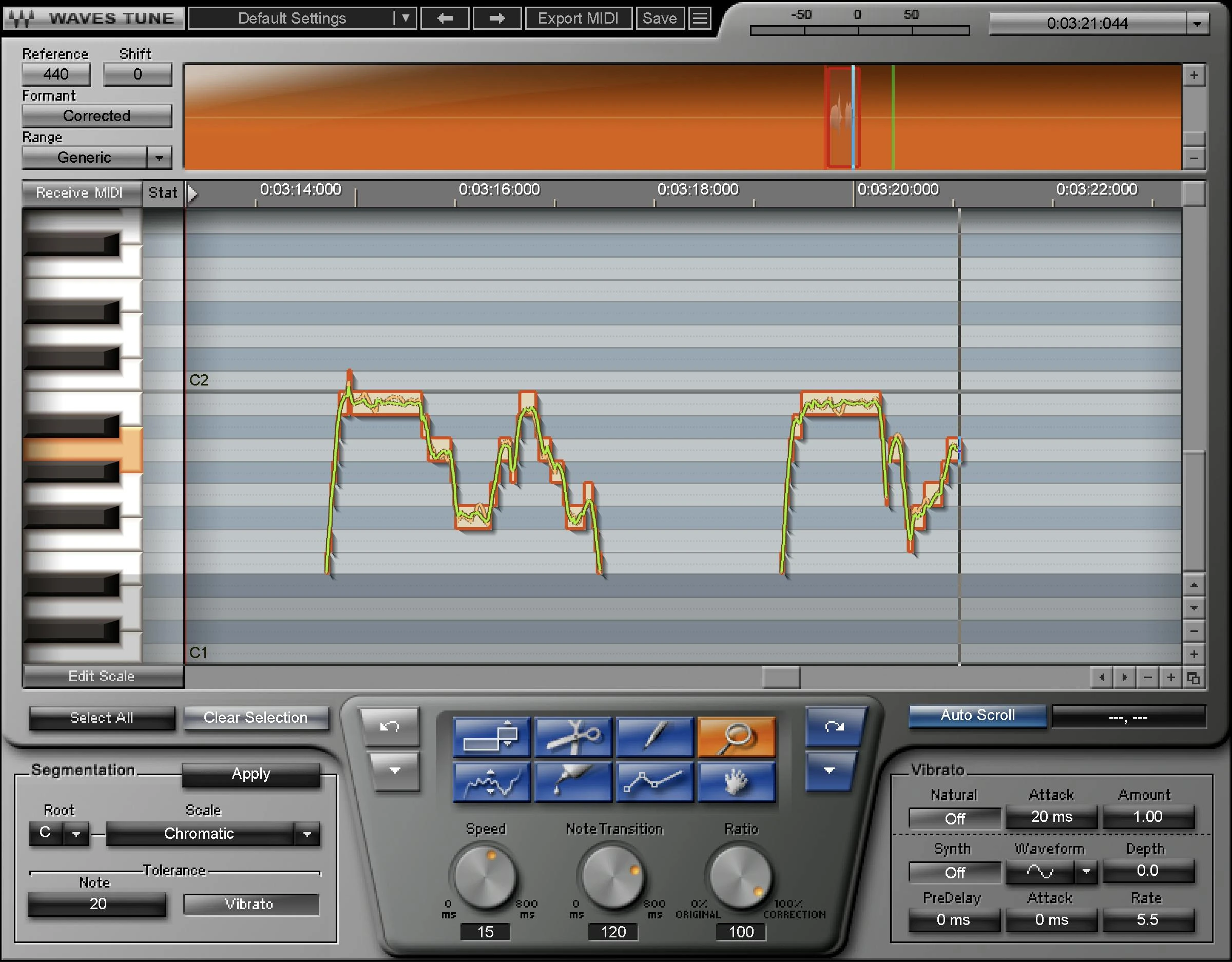
Waves Tune's note editor separates the detected performance from the corrected pitch. Interface image: Waves.
This is particularly useful when the intended melody includes a note outside the main scale, or when one syllable needs a different correction approach from its neighbours. You make a musical decision about that moment rather than asking one setting to handle every phrase.
A sensible first editing pass
- Finish your vocal comp and major timing edits before scanning. Place Tune before effects that add extra voices or tails.
- Play the passage through Tune so that it can analyse the recording.
- Check the detected notes against the intended melody. Correct the target note before spending time on how quickly the correction happens.
- Select only the phrase that needs work. Start with moderate correction, then adjust Speed, Note Transition and Ratio for that selection.
- Check the repaired phrase with the instrumental, including the transition into the next line.
Listen for an entrance that becomes too square, a slide that disappears, or a held note that loses its movement. If the note centre is improved but the phrasing becomes stiff, back off the correction instead of continuing to force the whole phrase toward a perfectly flat line. Pitch accuracy and a convincing performance are related, but they are not the same judgement.
Tune is the more appropriate purchase when you expect to spend time editing. It is less appropriate when the immediate goal is to hear a tuned voice in headphones while recording.
Choose Tune Real-Time for tracking and automatic correction
Waves Tune Real-Time works on the incoming performance without a separate capture pass. That makes it the more direct option for recording with a tuned monitor sound, trying a pronounced tuning effect, or applying automatic correction to an existing vocal track.
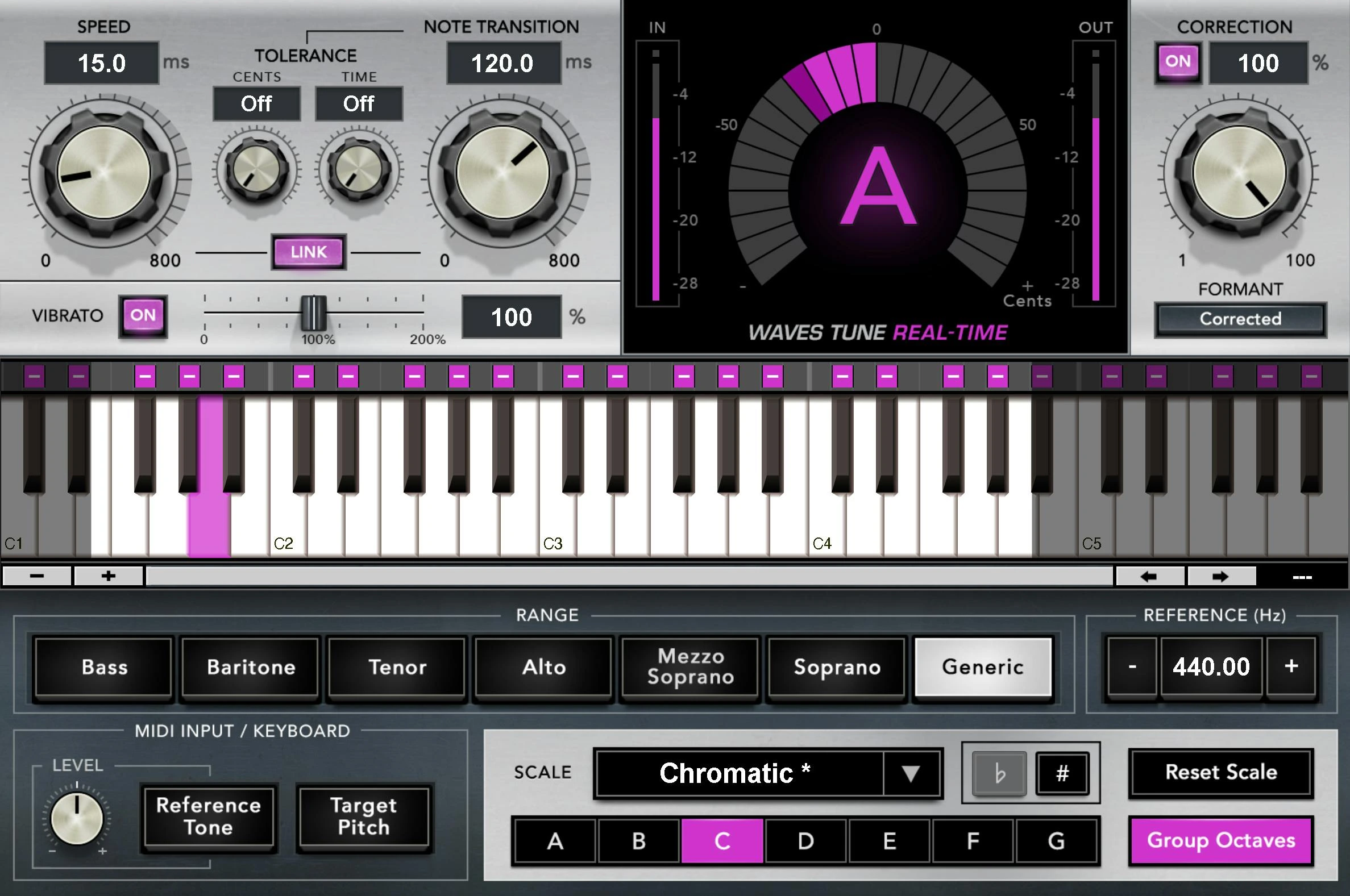
Tune Real-Time puts Scale, Range, Speed and Note Transition on one screen. It does not provide Tune's recorded-note editing workflow. Interface image: Waves.
Set the song's root and scale, then select a suitable vocal range. Speed controls how quickly pitch correction settles toward its target; Note Transition controls the move between target notes. They solve different problems, so avoid changing both at once while learning what the vocal needs.
Starting settings for a natural vocal
As an initial experiment, try Speed around 30–60 ms and Note Transition around 100–150 ms, with formant correction enabled. These are suggested starting points, not a preset guaranteed to suit every singer. Keep the instrumental playing and adjust one control at a time.
If sustained notes still wander too much, try a faster Speed. If the vocal jumps abruptly between notes, try a slower Note Transition. When the plugin chooses the wrong note, revisit the scale and permitted notes first: making correction slower does not turn a wrong target into a correct one.
Starting settings for an obvious tuning effect
For deliberately stepped pitch changes, try Speed and Note Transition near their minimum settings, then increase them until the articulation suits the track. A strong effect still depends on the correct note targets. Fast correction against the wrong scale can make a confident performance sound uncertain.
Try the effect on your own short phrase with both held notes and quick transitions. Decide whether the consonants, scoops and phrase endings still feel intentional. The goal is a repeatable sound you can perform into, not simply the smallest possible numbers.
Does Tune Real-Time really have zero latency?
Waves describes Tune Real-Time as a low-latency processor. Its manual specifies dynamically changing processing latency of approximately 0–4 ms, with lower notes taking longer. That does not include your interface, driver, buffer or the other plugins in the monitoring path.
For tracking, start with a light session and a buffer your computer can run reliably. Temporarily bypass processors that add substantial delay, especially on the master output. If you hear both the dry direct-monitor signal and the delayed software-monitor signal, check your interface and DAW monitoring routes before blaming pitch detection.
Our guides to reducing latency in FL Studio and choosing a buffer size cover that part of the setup. A faster tuner cannot compensate for an unnecessarily delayed monitoring chain.
Waves Tune V16 and ReWire: what changed?
Waves Tune V16 no longer supports ReWire. Waves says it continues to work in supported hosts, but you cannot use Tune's transport to control the host timeline through ReWire. Older tutorials and the legacy Tune manual still describe that connection, which can send you looking for a component your current installation does not include.
Check the current supported-host list for your Waves version and DAW. For V16, use your DAW's transport when capturing and reviewing audio. The Waves ReWire support note explains the version distinction.
Which one fits your vocal workflow?
A singer recording with a tuning effect
Start with Tune Real-Time. Hearing the intended effect can influence how the singer approaches note transitions. Keep an unprocessed recording available so that you can change the tuning decisions later. Confirm how your DAW routes monitoring and recording before the session.
A finished lead vocal with two or three weak notes
Start with Tune. Targeted repairs are easier to judge when you can select the problem notes directly. Avoid reworking the rest of the performance simply because a correction tool is available.
A doubled vocal or stacked backing part
Treat each recorded voice separately. Neither plugin is intended to untangle several singers or chords from a combined audio file. Make each part work against the harmony, then check the stack together: tuning every take identically can reduce some of the movement you wanted from a double.
You already own a pitch editor
If your existing editor already handles the repairs you need, Tune may duplicate that role. A real-time processor could fill a more distinct gap. Conversely, if you already have a tracking tuner, buy another one only when its controls, compatibility or workflow solve a specific problem. For a separate comparison of tracking tools, read Waves Tune Real-Time vs Auto-Tune.
Frequently asked questions
Can Waves Tune Real-Time process an already recorded vocal?
Yes. It processes the audio arriving at its input, whether that comes from live monitoring or a recorded track playing back. The limitation is the absence of Tune's graphical note-editing stage.
Do I need both Waves Tune and Tune Real-Time?
Only if you need both workflows and do not already own tools that cover them. For example, you might monitor through Real-Time while recording, then edit the original dry take with Tune. You do not have to put both processors in the final signal chain.
Which plugin makes a vocal sound more natural?
That depends on the performance and the correction decisions. Tune gives you more direct control over individual repairs; Real-Time can be convenient for consistent automatic correction. Wrong target notes or excessive correction can make either approach sound unnatural.
Conclusion
Waves Tune is the better fit for deliberate repairs after recording. Waves Tune Real-Time is the better fit for tracking, immediate automatic correction and performing into a tuning effect. Choose the workflow you need first; a small difference in sale price is less important than being able to make the right correction at the right stage.
Technical references: Waves Tune manual and Waves Tune Real-Time manual. Version and pricing checks: November 20, 2026.


