

If FL Studio has no sound, open Options > Audio settings and check the selected output device. Then play your project and watch the Master meter in the Mixer. If the meter moves, start with the output and your speakers or headphones. If it stays still, check the sounds, playback mode, mutes and routing inside the project.
Our advice is to follow the sound from its source to the output. Change one thing at a time. That is quicker than changing several settings and losing track of what helped.
Start with the problem you actually have
| What happens? | Where to start |
|---|---|
| Nothing plays, even in a new project | Audio device, driver and physical output |
| The Master meter moves, but you hear nothing | Master output selection, monitor level and headphones or speakers |
| One project is silent | Routing, muted parts, automation and effects |
| Only one instrument is silent | Its loaded sound, notes, channel and Mixer insert |
| Sound stops when you switch apps | Auto close and audio-device sharing |
First, save a copy of your project. Keep the listening level comfortable while testing, especially if you have been turning controls up to find the sound.
Try a simple audio file in a new, empty project. This comparison helps separate a project problem from a wider output problem. If the new project works, return to the original and investigate its signal path.
1. Check your audio device
Open Options > Audio settings. Select the device you are actually listening through, rather than assuming FL Studio follows the output used by another app.
For example, headphones connected to a USB interface need the appropriate interface output. Headphones connected to the computer use a different output path.
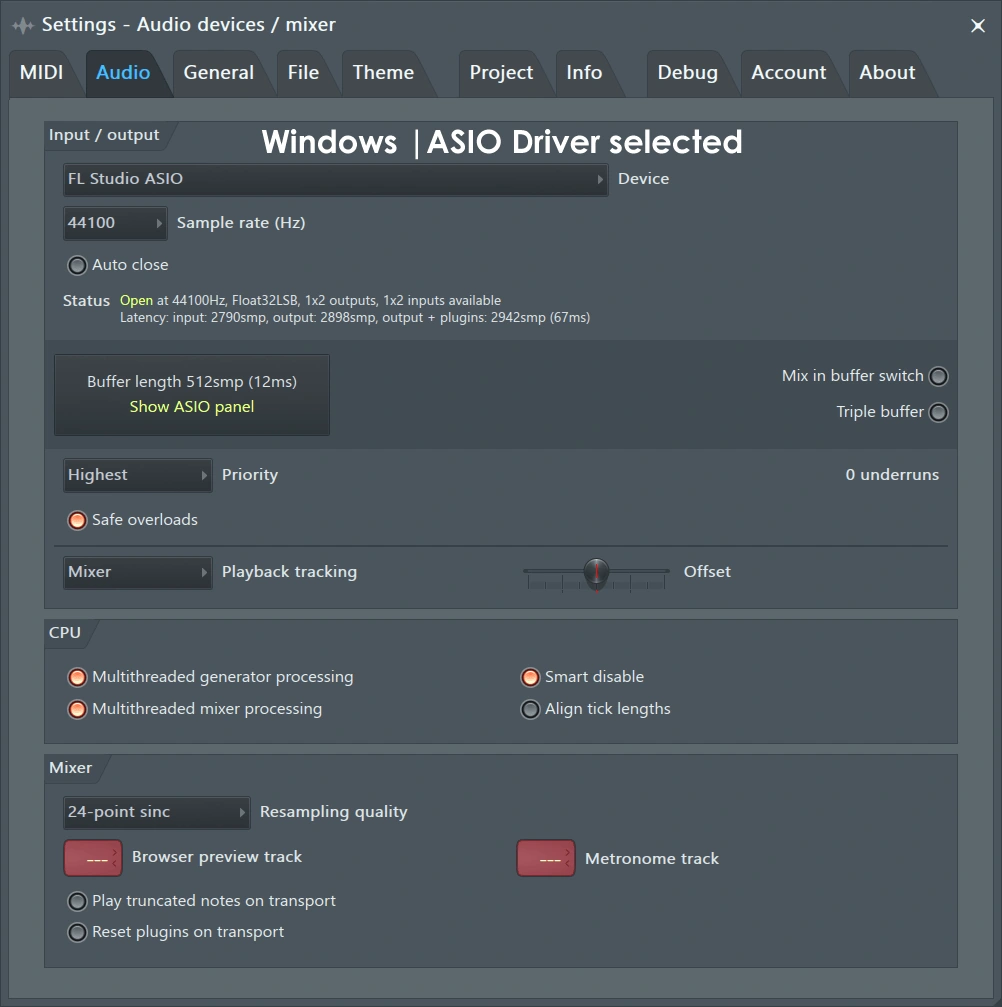
Windows
If your audio interface has a manufacturer-supplied ASIO driver, use that. Without a dedicated interface driver, FL Studio ASIO is a useful starting point.
When using FL Studio ASIO, open Show ASIO panel and check its Output selection. If Default output sends audio to the wrong device, choose the intended output explicitly.
Our tip: use one simple output while diagnosing. Get sound working through the computer or one interface before building a setup with several devices.
Mac
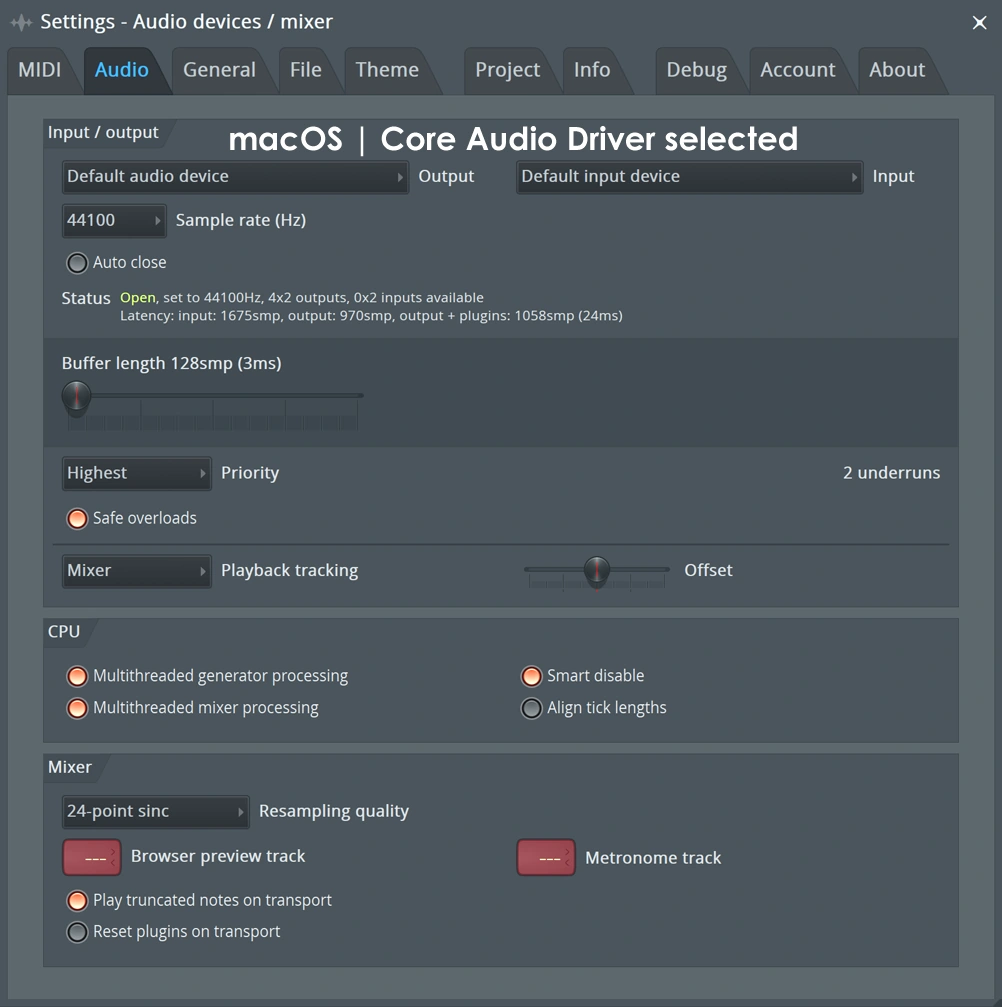
Use the appropriate Core Audio output in Audio settings. Choose your built-in output, connected headphones or audio interface as needed. You do not need to install a Windows ASIO driver on a Mac.
If you recently unplugged an interface or changed headphones, check the selection again. A remembered device choice may no longer match where you expect to hear the sound.
We would test a wired output first when the setup includes Bluetooth. It removes one variable while you check the project.
2. If the Master meter moves, check the output path
The Master is usually the final Mixer track before audio reaches your device. Select it and check its hardware output selection. Make sure the chosen output pair matches the ports you use.
Then check the physical setup: are the speakers powered, are the headphones in the correct socket, and is the interface's monitor or headphone level turned up enough to hear?
Also check FL Studio's monitor volume. Do not confuse that listening control with an individual channel's level.
A browser playing sound proves that something in your setup can play audio. It does not prove that FL Studio is using the same driver or output. Keep comparing the actual selected devices.
Our suggested test is to listen through one known working pair of headphones. If that works, you can investigate the speaker connection separately.
3. Check Song mode and the playback position
FL Studio has Pattern and Song playback modes. Pattern plays the selected pattern; Song plays the Playlist arrangement.
If you want to hear the whole arrangement, select SONG and start from a section containing clips. If PAT is selected and the current pattern has no notes, playback can run without producing the part you expect.
For one instrument, select a pattern that contains its notes or test the instrument directly. Watch what is actually playing rather than judging only by the moving playhead.
Our tip: loop a short section with a sound you recognise. Use the same section for each check so you do not mistake an empty part of the arrangement for a broken setting.
4. Check mutes and level controls
Audio can be muted at several places: the Channel Rack, Playlist, individual clips and Mixer. Check the affected part as well as the Master.
A greyed-out audio clip may have been muted with the Playlist's Mute tool. Restore it if you want that clip to play.
Look at the relevant level controls too. A channel or Mixer fader at zero can stop that part even when the rest of the project works.
Do not turn every track up together. Follow one sound, find where its level disappears and correct that point. Keeping the rest of the balance unchanged makes it easier to return to mixing.
5. Follow the Mixer routing
Find the Mixer insert assigned to the silent sound. While it plays, compare that insert's meter with the Master meter.
If the insert receives audio but the Master does not, inspect the route between them. The sound may pass through a bus before it reaches the Master. Check that bus too.
In a simple setup where the insert should feed the Master directly, select the source insert and inspect the send connection under the Master. Image-Line shows the active route in green; an available upward send arrow can enable a missing connection.
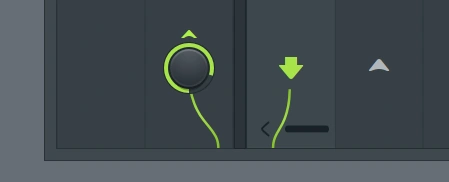
Our advice is to understand the intended route before adding a new one. If a track already feeds the Master through a bus, adding another direct path can change its level and processing.
For the difference between normal audio routing and a control signal, read our FL Studio sidechain guide.
6. Check whether an effect is stopping the sound
Save the project, then temporarily bypass effects on the affected insert, any bus it uses and the Master. Start with the last plugin you added or changed.
If sound returns, enable effects one at a time. That helps identify which plugin or setting needs attention.
A gate can close on a quiet signal. A plugin may need activation or an instrument may have no sound loaded. A modular effect also needs a connected internal signal path.
With Patcher in the Mixer, check that audio can travel from From FL Studio to To FL Studio through the intended modules. An empty or disconnected patch may stop the sound.
We would investigate the identified plugin before reinstalling FL Studio. Check its licence, preset, output level and current compatibility. Our VST troubleshooting guide covers a separate problem: plugins that do not appear at all.
7. Look for automation if a control keeps resetting
If a volume control returns to zero when playback starts, check for automation or recorded events controlling it. Moving the knob manually may only change it until the next automated value arrives.
Find the control that is moving, then inspect its automation links and the related clips or events. Work in your saved project copy before removing anything.
Our tip: start playback twice after a change. A control that stays correct when stopped but changes as soon as the song runs is a useful clue.
8. Check Auto close and device conflicts
If sound stops when FL Studio loses focus, check Auto close in Audio settings. Turning it off is a useful test when you want playback to continue while another app is selected.
If the driver reports that the device is already in use, close other audio apps and try reopening FL Studio. Device sharing depends on the driver; changing an output in one app does not always release it for another.
Write down which combination works. Test FL Studio alone first, then reopen the other app. That is easier to diagnose than starting several programs together and changing drivers at the same time.
9. If only your MIDI keyboard is silent
MIDI notes are instructions, not audio. A keyboard needs to trigger a loaded instrument to make sound inside FL Studio.
First, test the instrument with its on-screen keys if it has them. If it plays there, check the keyboard input and selected instrument channel. If it is silent there too, inspect the instrument's loaded preset, samples and Mixer route.
Our MIDI guide explains that relationship. For a delay between pressing a key and hearing it, use the latency guide instead.
SoundShaper opinion
Our first check is the Master meter because it gives the next step a clear direction. Then we test a new project and follow one sound through the setup.
We would avoid resetting everything at the start. That can replace a small routing problem with a larger job of rebuilding settings.
The most useful habit is to change one thing, play the same section and check what happened. Once sound returns, note the cause before moving on. It is much easier to fix the same problem next time when you know what stopped the audio.
Conclusion
Check the selected audio device, then use the Mixer meters to follow the sound. If every project is silent, focus on the output setup. If one project or instrument is silent, check its playback, mutes, routing, effects and automation.
If audio plays but breaks up, our crackling guide and buffer-size guide cover the next problem to solve.
Sources
Steps and interface references checked against Image-Line's no-sound support guide, Audio settings manual, Mixer manual, Toolbar manual and plugin troubleshooting manual. Checked 25 October 2026. Screenshots show Image-Line reference layouts; names and controls can vary with the version and audio device.
![[background image] image of recording equipment (for a musician & band)](https://cdn.prod.website-files.com/68efa70811edd8e5af30a90d/6ae28f3ffeabaf5b76db2580_6ae28f255000f820b159a320_crystalline-review-cover.webp)
![[background image] image of recording equipment (for a musician & band)](https://cdn.prod.website-files.com/68efa70811edd8e5af30a90d/6ae28e7e5d1572089570ac87_6ae28e5eead33b2db2a18b5f_transit-2-review-cover.webp)
![[background image] image of recording equipment (for a musician & band)](https://cdn.prod.website-files.com/68efa70811edd8e5af30a90d/6ae28d603a57759da71022d6_6ae28d41f6af13c91dee9c76_drumazon-2-review-cover.webp)