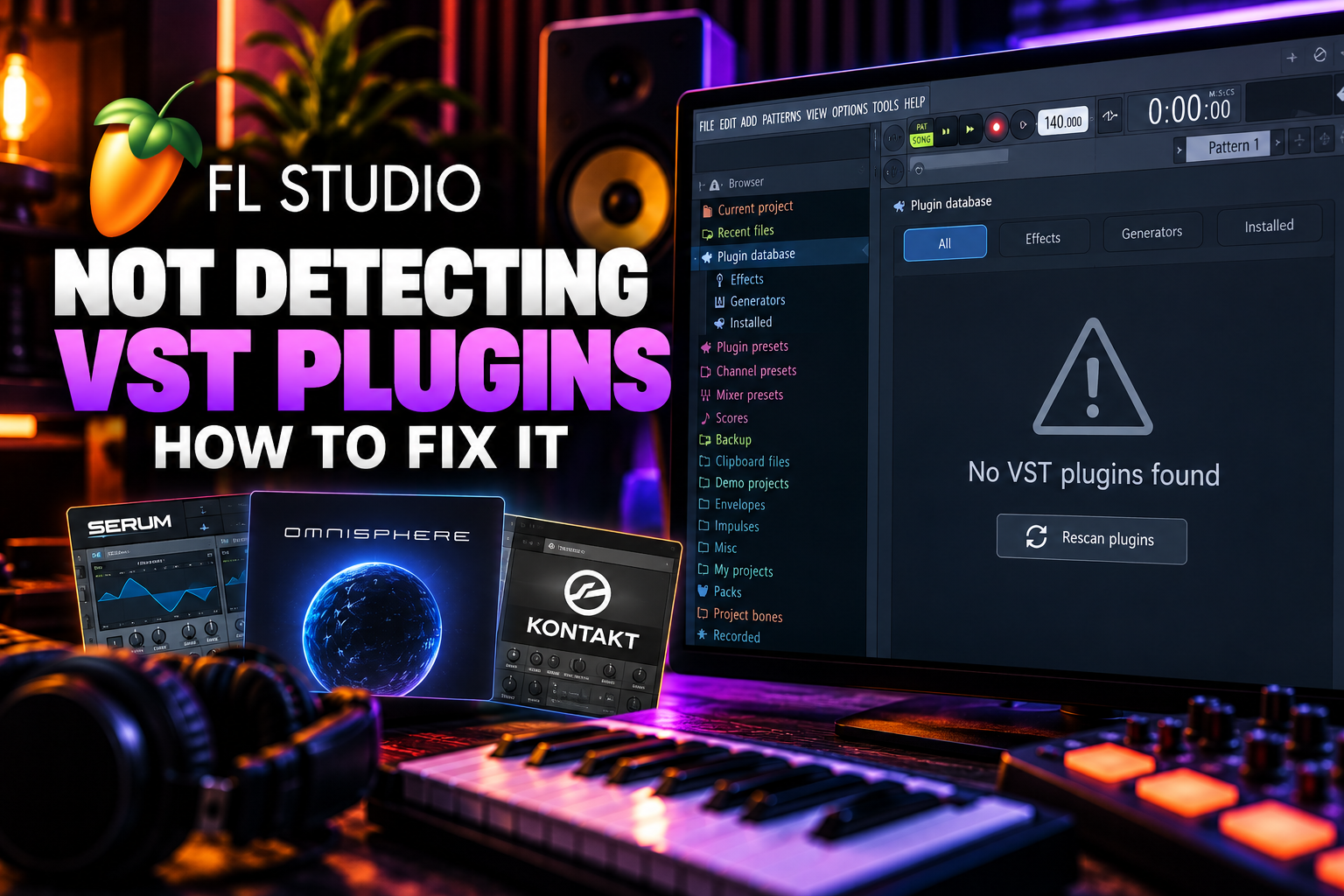

If FL Studio is not detecting a VST plugin, the plugin is usually installed in the wrong folder, has not been scanned correctly, or is incompatible with the FL Studio mode you are running. In most cases you do not need to reinstall FL Studio.
Quick fix: open Options → File settings → Manage plugins. Enable Verify plugins, then click Find installed plugins. If the plugin was already scanned before, also enable Rescan previously verified plugins and Rescan plugins with errors.
First: make sure the plugin is actually installed
Downloading a plugin installer is not the same as installing the plugin. Run the developer's installer and let it place the plugin in the normal system location unless you have a specific reason to choose another folder.
Image-Line recommends using the plugin manufacturer's installer and its default location. This avoids most scanning problems, especially with VST3 plugins.
1. Run a full plugin scan with Verify plugins enabled
Open Options → File settings → Manage plugins.
Then use Find installed plugins with Verify plugins enabled.
Verify plugins does more than a fast scan. It opens the plugin, identifies whether it is an instrument or effect, checks its bit size and stores its identification data. This helps FL Studio place the plugin in the correct menus.
If you only used a fast scan before, a plugin can exist on the system but still be classified poorly or not show where you expect it.
2. Rescan plugins that FL Studio already knows about
If a plugin used to work, was updated, changed format or failed during a previous scan, a normal scan may not be enough.
In Plugin Manager, enable:
Verify plugins
Rescan previously verified plugins
Rescan plugins with errors
Then run the scan again.
This is especially useful after updating a plugin or changing between Apple Silicon and Rosetta modes on a Mac.
3. Check the plugin's install folder
FL Studio scans standard plugin locations automatically. VST2 plugins can also be found in custom folders if you add those folders as search paths.
| Format | Typical location | Can FL Studio use a custom search path? |
|---|---|---|
| Windows VST2 | Common Files\VST2 or another VST2 folder | Yes |
| Windows VST3 | Program Files\Common Files\VST3 or the standard VST3 location | No — install to the system VST3 location |
| macOS VST2 | /Library/Audio/Plug-Ins/VST | Usually standard location; custom VST paths can be added where supported |
| macOS VST3 | /Library/Audio/Plug-Ins/VST3 | No — use the standard system location |
| macOS Audio Unit | /Library/Audio/Plug-Ins/Components | No |
| CLAP | System CLAP folder | Use the standard format location |
Important: do not install third-party VST plugins inside FL Studio's own program plugin folder. Image-Line reserves that location for legacy native FL Studio plugins.
4. Add the correct custom VST2 folder to Plugin Manager
If you deliberately installed a VST2 plugin somewhere custom, FL Studio will not magically scan every folder on your computer.
Open Manage plugins, add the folder under Plugin search paths, then scan again.
This is mainly for VST1/VST2 plugins. FL Studio does not use arbitrary extra search folders for VST3 or AU plugins, so moving a VST3 file into a random folder and adding that path is not the right fix.
5. Check whether you installed VST2, VST3, AU or CLAP
Some plugin installers let you choose several formats. If you installed only one format, look for that format in FL Studio rather than assuming every version was installed.
| Format | Typical file extension | Platform |
|---|---|---|
| VST2 | .dll on Windows, .vst on macOS | Windows / macOS |
| VST3 | .vst3 | Windows / macOS |
| Audio Unit | .component | macOS only |
| CLAP | .clap | Windows / macOS |
FL Studio supports VST, AU on macOS and CLAP. CLAP support was introduced in FL Studio 2024.1.
6. Look in the correct place after scanning
A successful scan does not always mean the plugin appears in the menu you expected.
Newly scanned plugins appear in the Browser under:
Plugin database → Installed → Effects → New or Generators → New.
Effects and instruments are different categories. A compressor will not normally appear in the Channel Rack's instrument list, and a synth will not appear as a normal Mixer effect.
Running Verify plugins helps FL Studio classify these correctly.
7. Check the Favorite status if the plugin is installed but missing from quick menus
Sometimes the plugin has been detected correctly but is not visible in your normal Add menu because it has not been added to Favorites.
Open Plugin Manager and find the plugin. If it appears there, FL Studio has detected it.
Enable its Favorite status if you want it to appear in the normal plugin menus and Plugin Database favorites.
This is a menu-organization issue, not an installation failure.
8. On Apple Silicon, check Native vs Rosetta mode
This is one of the most common Mac-specific causes of a missing plugin.
FL Studio on Apple Silicon can run natively or under Rosetta 2. Image-Line states that Plugin Manager scans according to the mode FL Studio is currently using:
Native Apple Silicon mode scans ARM-compatible plugins.
Rosetta 2 mode scans Intel-compatible plugins.
If you switch modes, perform another complete plugin scan with Verify plugins, Rescan previously verified plugins and Rescan plugins with errors.
If an older Intel-only plugin appears in Rosetta but disappears in native mode, the plugin itself may simply not have an Apple Silicon-native version.
9. Install the 64-bit version when available
Modern FL Studio systems are 64-bit, so use the 64-bit version of a plugin whenever the developer provides one.
Legacy 32-bit plugins may require bridging and can create more compatibility problems than current 64-bit builds.
If an installer offers both x86/32-bit and x64/64-bit options, choose the version that matches your current system unless you have a specific legacy reason not to.
10. If the scan shows an error, troubleshoot the plugin itself
If FL Studio finds the plugin file but reports an error, the search path is no longer the main problem.
Check whether the plugin:
supports your current operating system, has been activated correctly, requires a newer runtime or helper application, or is blocked by a failed installation.
Then enable Rescan plugins with errors and scan again.
If the plugin still fails, reinstall the latest version from the developer and use its default installation locations.
FL Studio finds VST2 but not VST3
This usually points to the VST3 installation location.
VST3 uses standardized system folders. FL Studio does not let you fix a misplaced VST3 by adding any random folder to the custom VST search paths.
Re-run the plugin installer and install the VST3 version to the normal system VST3 folder, then Verify plugins again.
FL Studio finds the effect but not the instrument
Run a verified scan rather than only a fast scan. Verify plugins identifies whether the plugin is a generator or effect and places it in the correct category.
Also make sure the plugin developer actually provides separate instrument and effect versions if that is what you expect.
The plugin is installed but does not appear in FL Studio after an update
FL Studio updates normally do not uninstall your third-party plugins because those plugins are installed separately.
After updating FL Studio, run Manage plugins → Verify plugins again. Image-Line specifically recommends a fresh scan if third-party plugins do not appear after an update.
The plugin appears in Plugin Manager but not in the Channel Rack
First check whether it is an instrument or an effect.
If it is an instrument and Plugin Manager can see it, enable Favorite and look under the generator/instrument categories.
If it is an effect, open a Mixer insert and load it from an effect slot instead.
The plugin appears but will not open
That is different from FL Studio not detecting it.
If the plugin appears in Plugin Manager but crashes, freezes or opens with an error, check the developer's supported operating systems, activation status and plugin version.
Try the alternative plugin format if available. For example, test VST3 instead of VST2, or on macOS test the VST version versus AU.
If it loads but produces pops or crackling, see our FL Studio crackling troubleshooting guide.
How to find where a missing plugin is installed
If you are not sure where the installer placed the plugin, search the computer for its plugin file.
On Windows, VST2 plugins normally end in .dll and VST3 plugins in .vst3.
On macOS, search for .vst, .vst3 or .component depending on the format.
Once you find a VST2 file, you can add the containing folder to FL Studio's Plugin search paths. For VST3 or AU, reinstalling into the standard system folder is usually the correct solution.
Fast checklist: plugin not showing in FL Studio
| Order | What to check |
|---|---|
| 1 | Confirm the plugin installer actually completed |
| 2 | Open Manage plugins |
| 3 | Enable Verify plugins and run Find installed plugins |
| 4 | Enable Rescan previously verified plugins and Rescan plugins with errors if needed |
| 5 | Check the VST/AU/CLAP install location |
| 6 | Add a custom search path only for a custom VST2 folder |
| 7 | Check Effects vs Generators and Favorites |
| 8 | On Apple Silicon, check Native vs Rosetta mode |
| 9 | Install the current 64-bit build |
| 10 | Reinstall the plugin from the developer if the scan still errors |
Frequently asked questions
Why is my VST not showing up in FL Studio?
The most common reasons are an incomplete plugin scan, an incorrect install folder, a missing custom VST2 search path, incorrect Native/Rosetta mode on Apple Silicon or an incompatible plugin version.
How do I rescan plugins in FL Studio?
Open Options → File settings → Manage plugins, enable Verify plugins and click Find installed plugins. Add the rescan options if the plugin was already verified or previously failed.
Where should I install VST3 plugins?
Use the developer's default VST3 location. On Windows this is normally under Program Files/Common Files/VST3. On macOS it is normally /Library/Audio/Plug-Ins/VST3.
Can I add a custom VST3 folder to FL Studio?
No. FL Studio's custom Plugin search paths are intended for VST1/VST2. VST3 and AU plugins need to be installed in their standardized system locations.
Why does a plugin show in Plugin Manager but not in my menu?
It may not be marked as a Favorite, or you may be looking in the instrument menu for an effect or vice versa.
Why did my plugins disappear after switching to Apple Silicon native mode?
The native and Rosetta modes scan compatible plugin architectures differently. Run a complete rescan in the mode you want to use and confirm the plugin has a compatible build.
Should I use VST2 or VST3 in FL Studio?
Use the current format recommended by the plugin developer. VST3 has a standardized install location and is generally the current format, but some older plugins or projects may still rely on VST2.
Does updating FL Studio delete VST plugins?
No. Third-party plugins are installed separately. If they do not appear after an update, run Verify plugins again.
Final fix order
If a new plugin is missing, start with Manage plugins → Verify plugins → Find installed plugins. If that fails, check the plugin's actual file location and format.
For VST2, add the correct custom search folder if needed. For VST3, AU or CLAP, use the standard system locations. On Apple Silicon, confirm whether you are running native FL Studio or Rosetta and rescan after changing modes.
Official references
This guide follows Image-Line's current documentation. See the Installing Plugins guide, Plugin Manager and File Settings guide and Missing VST Plugins guide.
![[background image] image of recording equipment (for a musician & band)](https://cdn.prod.website-files.com/68efa70811edd8e5af30a90d/6acd43b8998701bbde84e11a_Best%20Export%20Settings%20for%20FL%20Studio.png)
![[background image] image of recording equipment (for a musician & band)](https://cdn.prod.website-files.com/68efa70811edd8e5af30a90d/6acd3f9347bd0dd62b202621_ShaperBox%203%20vs%20Infiltrator%202.png)
![[background image] image of recording equipment (for a musician & band)](https://cdn.prod.website-files.com/68efa70811edd8e5af30a90d/6acd3d99fa68785e0f58960e_Kontakt%208%20vs%20Decent%20Sampler.png)