

A vocal can sound balanced for most of a verse, then become piercing on one louder word. Cutting that frequency throughout the recording often removes detail from the words that were already fine. Waves F6 lets you target the troublesome region dynamically while keeping separate control over the underlying EQ. It is worth considering when a specific frequency problem comes and goes, especially if you also need external sidechain or mid/side processing.
Where F6 fits in a mixing session
F6 is most useful after you identify a repeatable problem: a vowel that jumps forward, a bass note that blooms, or an instrument that covers the singer only during a busy phrase. It gives you a way to make a smaller correction at those moments. That is a more concrete reason to reach for it than wanting every curve in the mix to move.
A fixed EQ remains useful when the entire recording needs a tonal change. A full-band compressor remains useful when the whole performance needs level control. F6 earns its place between those decisions, where changing everything would do more damage than changing one region. Our dynamic EQ vs multiband compression guide develops that distinction.
The examples below are proposed exercises for your own recordings, based on the documented controls. They are not reports from a controlled listening test, and their numbers should change with your material.
The controls that define the correction
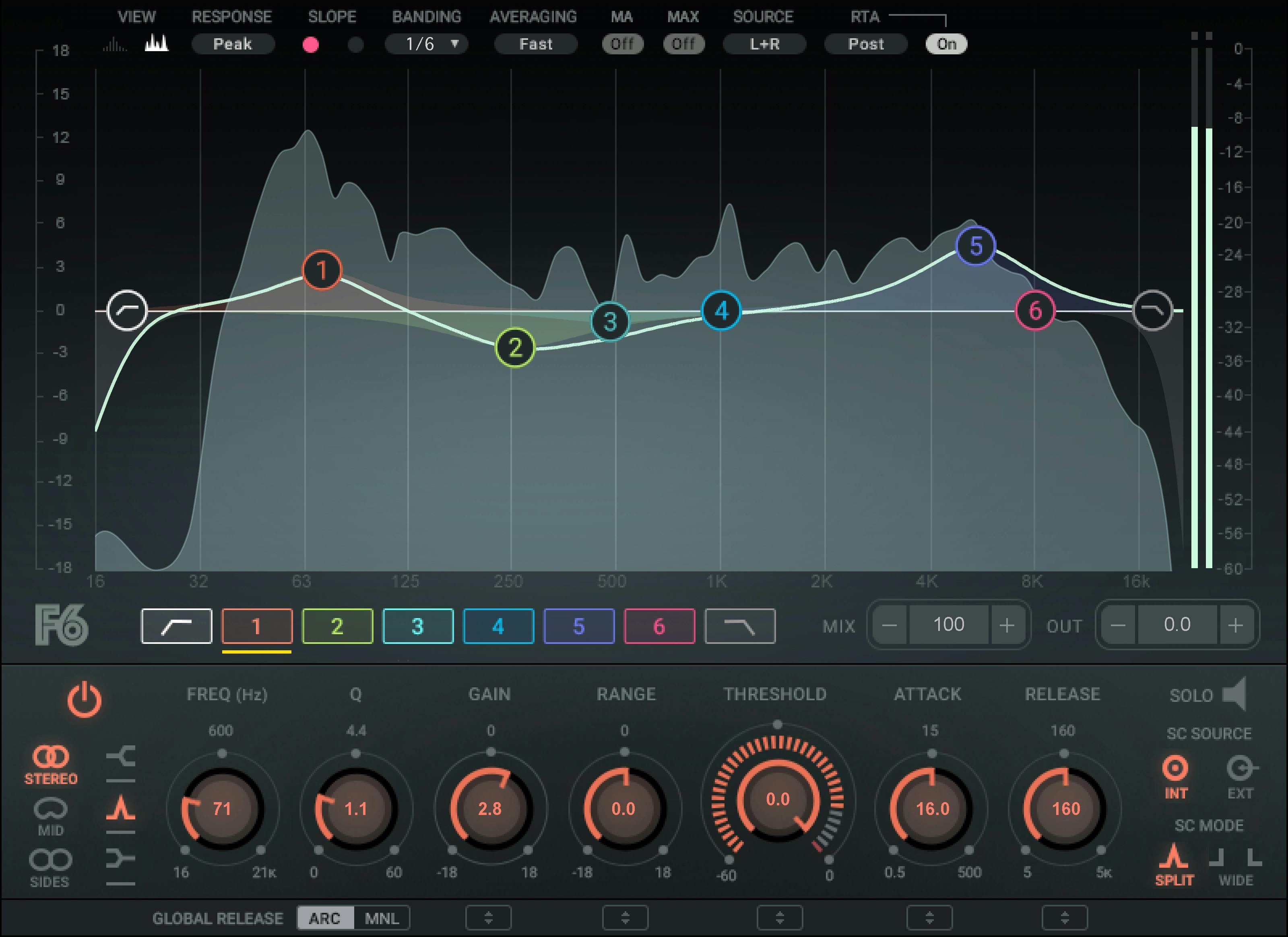
F6 has six floating bands plus high-pass and low-pass filters. Frequency and Q locate and shape a band. Gain sets its static offset; Range defines the available dynamic change. A negative Range cuts dynamically, while a positive Range boosts. Threshold sets when dynamics begin; Attack and Release shape the response.
Think about Gain and Range as two separate commitments. If a vocal is generally too nasal, a small permanent reduction may make sense. If it becomes nasal only on certain words, begin with Gain at zero and a negative Range. Combining a static cut with dynamic reduction can be useful, but it should be a deliberate decision.
A frequent setup mistake is to drag the curve down, lower Threshold and assume the band is only responding dynamically. The fixed cut remains between events. Before adjusting timing, check whether the baseline curve already changes the tone more than you intended.
A practical harsh-vocal starting point
Choose a short passage containing one uncomfortable vowel and a quieter line you want to preserve. Start with one bell band, Gain at 0 dB, internal sidechain and Split mode. Leave the other bands neutral. For this exercise, use Manual global release so you are evaluating the selected band's timing directly.
- Find the region that makes the loud vowel uncomfortable. A search around 2–5 kHz can be useful, but the recording decides the actual frequency.
- Try Q around 2 and Range around −3 dB. These are intentionally moderate starting values.
- Lower Threshold until the louder problem word activates the correction while the quieter line remains mostly unchanged.
- Try Attack around 5 ms and Release around 100 ms. Replay the transition into the next word, rather than watching only the deepest dip.
- Bypass the band at similar output level. Keep the correction only if the lyric becomes easier to follow without losing its useful presence.
If every word sounds dull, raise Threshold or reduce the available Range. If the harshness remains at the beginning of each word, try a shorter Attack. If the next syllable starts under an unwanted dip, try a shorter Release. Change one thing at a time so you can connect the symptom with the adjustment.
If the harshness shifts between unrelated frequencies, one narrow band may miss part of it. First try a somewhat broader, shallower correction. Adding several deep notches immediately can leave the vocal thin. Our harsh-vocal guide covers recording, level and tonal issues that may deserve attention first.
De-essing with a band: preserve normal brightness
Use a phrase that includes an S, an SH and a bright vowel. Those sounds can overlap without needing the same treatment. Locate the objectionable region, then try a modest negative Range with fast Attack and a relatively short Release. For example, 1 ms and 60 ms are reasonable values to audition, rather than a universal de-esser setting.
Lower Threshold while checking the full phrase. The useful result is less distracting sibilance with the ordinary vowel still clear. If the singer starts to sound as though a consonant is missing, reduce the depth before refining the frequency. A very deep reduction is not evidence of a more precise correction.
Briefly use the detector's Solo function to understand what activates the band, then return to the full signal. A narrow soloed region can sound unpleasant even in a good recording. Judge whether the actual lyric improves. If finding and maintaining the detector region becomes the whole task, the dedicated tools in our Sibilance vs Renaissance DeEsser comparison may suit the session better.
Control one boomy bass note
Loop a bass passage that alternates the troublesome note with two ordinary notes. Identify whether the problem belongs to the recording or mainly to the room: listen on another familiar playback system if possible. Processing a mix to compensate for one room resonance can create a different imbalance elsewhere.
On the bass track, place a bell around the region that blooms. Try Gain at zero, Range around −2 or −3 dB and Q around 2–4. Use a slower starting Attack than the vocal exercise, perhaps 20 ms, and Release around 150 ms. Lower Threshold until the troublesome note is controlled without making every note equally small.
Listen to the onset and tail separately. If the note loses its useful front edge, lengthen Attack or reduce the correction. If the next note arrives before the band has recovered, shorten Release. A line with quick fills may need a different compromise from one built on long notes.
Check the kick at the same time. The goal is a more consistent bass line within the groove, not a perfectly flat spectrum. If the bass and kick are competing on every beat, a change in arrangement, sound selection or their broader balance may solve more than another dynamic band.
Split and Wide change what triggers the band
With Split, the band's filtered sidechain drives the detector. With Wide, full-range sidechain audio drives it. The selected EQ band is still the region being processed. Internal and External choose where that detector signal originates.
For a resonance that should react to its own region, begin with Internal and Split. If the band responds whenever the source gets louder, even when the objectionable frequency is not prominent, inspect the detector mode before making Threshold increasingly extreme.
For externally triggered ducking, decide what should drive the correction. Do you want a guitar band to move with the singer's overall phrase, or only with energy in a similar frequency region? Wide and Split provide different experiments. Listen to whether the guitar recovers naturally between words, rather than choosing a mode from its name.
Make room for a vocal with an external sidechain
Put F6 on the competing instrument or instrument bus, and route the vocal to its sidechain input using your host's routing. On the chosen band, select External. Keep the instrument's normal audio path separate from the detector routing; sending another audible vocal copy into that bus is a different operation.
Try a broad bell in the region where the vocal's intelligibility competes with the instrument. Set Gain to zero and begin with no more than about −2 dB of dynamic Range. A suggested timing experiment is 10 ms Attack and 150 ms Release. Lower Threshold while both parts play, then refine the response around phrase boundaries.
If the backing seems to inhale and exhale around every syllable, reduce the depth and revisit Release. If the instrument remains scooped after the singer pauses, check that static Gain is neutral and the recovery is appropriate. Bypass the processing during an instrumental gap: it should not solve a vocal conflict that is absent there.
Host setup matters. Confirm that the external detector receives signal before judging the plugin. Our FL Studio sidechain guide explains the routing principle; the F6 detector still needs to be assigned to the appropriate sidechain source in the host.
Use Mid or Side for a reason
The stereo component offers Stereo, Mid and Side band modes. RTA components add a real-time spectrum display. Global Release offers Manual and ARC, and Mix blends processed with unprocessed audio. These options expand the workflow, but they do not choose the target for you.
If a centred instrument competes with the singer, a Mid-only correction is worth comparing with Stereo processing. Check whether it creates enough room without making the centre feel weak. Do not assume the sides contain nothing useful to the vocal: reverb, doubles and other instruments may also contribute there.
For an overly bright stereo ambience, a Side-band experiment may help, but compare in mono and stereo. If the issue comes from one specific effect return, processing that return directly is often easier to understand than reshaping the entire mix.
The analyser can help locate an event and confirm that the intended band responds. It cannot tell you that a visible peak sounds bad. Set the correction by the sound, then use the display to understand it. Likewise, audition ARC after establishing a useful manual response; do not assume the printed Release value describes the same recovery in both modes.
Price, alternatives and reasons to skip
Waves listed F6 at $34.99 on November 22, 2026, against a listed MSRP of $149. This is a promotional USD price before applicable taxes. Check your bundle ownership and current offer before buying, and confirm your host and operating system against the Waves requirements.
Choose it when six independently located dynamic bands, external triggering and mid/side assignment cover recurring problems in your sessions. The workflow is particularly attractive if you prefer explicit Frequency, Range and Threshold decisions rather than automatic resonance detection.
Skip it if your current dynamic EQ already performs those tasks comfortably. If you mainly want broader multiband control, our F6 vs C6 comparison addresses that choice. If one static cut fixes the problem throughout the song, adding dynamics may only make the setup harder to maintain.
Conclusion
F6 is a useful corrective EQ when the target is clear and its behavior changes over time. Start with a neutral static curve, a modest dynamic Range and a detector that listens to the right signal. Build one successful correction before adding more bands, then keep checking the words, notes and arrangement that should remain untouched.
Technical reference: the Waves F6 user guide. Product information and USD price checked November 22, 2026. Numerical examples are suggested exercises, not measured test results.


