
u-he Satin is worth considering if you want a flexible tape toolkit for mix processing and creative effects. Studio, Delay and Flange modes give it a broader role than a saturation control alone, while the deeper settings suit producers who enjoy shaping how the tape model behaves.
Its flexibility is also the main buying question. If you want one quick texture preset, you may prefer a simpler tool. Satin makes more sense when you will use its tape controls, linked instances or additional effects often enough to justify learning them.
This review assesses the current features and suggested workflows using u-he's documentation and the retailer listing. It is not a report of a hands-on listening test.
What kind of tape plugin is Satin?
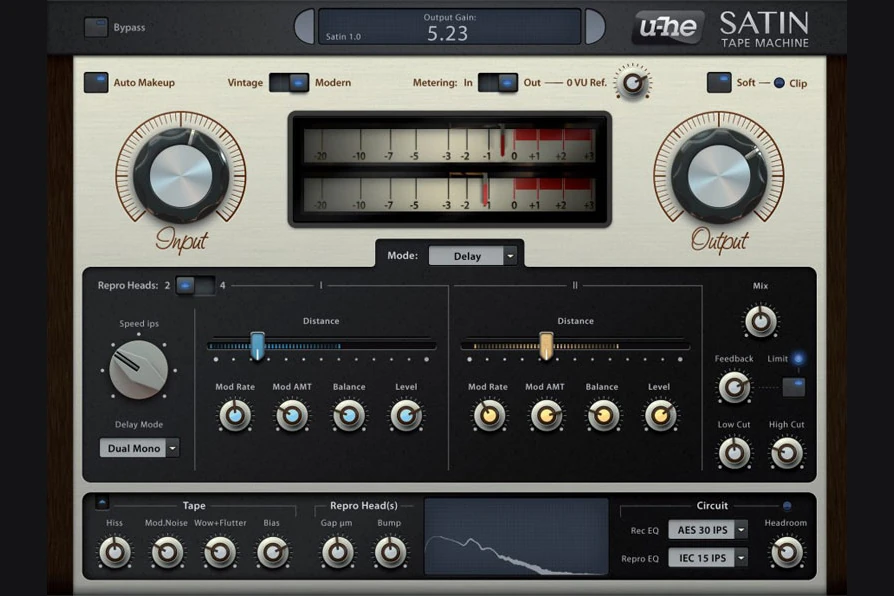
Satin models interacting tape-machine components rather than recreating one specific recorder. You can select modern or vintage tape and shape the result with tape speed, recording and reproduction circuitry, and deeper service settings.
Decide whether you want softer attacks, a different tonal balance, audible instability or an echo effect. Those are different goals, and they do not all belong on every track.
A drum bus is a useful first audition because you can hear how the relationship between kick, snare and cymbals changes. A sustained keyboard part is a useful second test because it makes unwanted pitch movement easier to notice.

Start with Input and Output
Input changes how hard you drive the model. Satin's Makeup function links compensation to the Input control, while Output remains available for adjustment. Makeup helps manage the level change, but you should still check the perceived loudness when comparing.
Try a drum passage at three levels: a restrained setting, a more obvious setting and a deliberately excessive one. Then return to the restrained version. This helps you hear the direction of the processing without deciding that the most dramatic setting must be the best.
Listen to the front of the snare, the body of the kick and the space around quieter percussion. If the loop becomes denser but the backbeat loses impact, reduce the processing before adding another plugin to recover what disappeared.
For a complete bypass comparison, use the main Bypass control. The separate Bypass Tape switch leaves other sections active, so it does not mean the same thing as removing all processing.
Studio mode: three places to audition it
Drum bus: keep the groove intact
On a live-style drum recording, compare quiet ghost notes with louder hits. On a programmed beat, listen to whether the kick and snare still establish the rhythm clearly. The aim might be a more connected texture, but it should not come at the cost of the movement you like.
For trap, test the drums with the 808 playing. An appealing sound in solo may become crowded once the bass returns. For house, listen to the busiest hat pattern: a darker top end can feel smoother while also losing useful energy.
Synths and keys: separate colour from instability
Start with a held chord or a phrase containing longer notes. Decide whether you want a tonal change, saturation or movement. Make one kind of change at a time so you know which part contributes to the result.
A drifting pad may suit an ambient passage. A precisely tuned lead doubled with another instrument may need more restraint. Compare the part with the arrangement running, especially if the harmony already contains close intervals or deliberate detuning.
Mixbus: check what changes downstream
When trying Satin before a limiter, watch how the limiter responds as well as listening to Satin itself. A change in transient shape or frequency balance can alter the work the next processor performs.
Keep an untreated version of the mix. Compare complete verses and choruses, then return after a break. A subtle colour choice should still make sense when you stop focusing on the plugin window.
For more on the surrounding processors, see our audio mastering plugin guide.
Grouping: a reason to use Satin across several tracks
Studio mode provides eight groups for linked editing across instances. Parameters can be locked so they remain independent. Grouped instances also respond together to the main Bypass control.
This is interesting if you want to explore a consistent tape approach across a small set of tracks. Audition it across a few percussion parts, then compare the group as a whole. Avoid starting with an instance on everything; that makes it harder to identify which tracks benefit.
Lock a parameter when that particular part needs different treatment. A background texture and a prominent lead do not need identical settings simply because they share a group. Shared editing should make decisions easier, not force every sound into the same role.
The Service panel: useful depth or unnecessary work?
The Service panel exposes settings including hiss, wow and flutter, bias, head-related parameters and high-frequency compression. Satin also includes noise-reduction encoder and decoder models.
The appeal is choosing the imperfections you want. You might enjoy a coloured synth while wanting the gaps between notes to remain quiet. Or you might intentionally want a rough texture on one transition rather than across the whole song.
Choose a reason before opening the deeper controls. If the initial setting already solves the task, you do not need to adjust every parameter. If a change is difficult to hear, compare a stronger version briefly, then return to a useful amount.
Our preference would be to add obvious noise and instability selectively. Check exposed introductions, pauses and endings, where a texture hidden under the chorus may become more noticeable.
Delay and Flange: the other buying argument
Delay mode offers two or four tape heads, routing choices and modulation. Flange mode provides through-zero tape flanging. These give Satin a creative role alongside its Studio processing.
For a vocal echo, choose a short phrase and listen to where the repeats land around the following line. Start with a restrained effect level and feedback amount. A textured repeat is only useful if the lyric remains readable.
For an electronic transition, try the flange effect on a duplicate or a dedicated passage rather than committing it across the entire arrangement. Listen through the transition into the next section: the effect should create movement without weakening the arrival.
If echoes are the main thing you need, compare the workflow with a dedicated delay. Our EchoBoy review covers another option. Satin's wider toolkit is more relevant when you also want Studio processing.
Should you choose Satin or a simpler effect?
Detailed tape-machine shaping: Trial Satin if you enjoy learning deeper controls.
Linked settings across tracks: Test grouping on a small collection of related parts.
Tape plus delay and flange: The extra modes may give Satin several useful jobs.
Quick saturation with little setup: Compare your existing effects before paying for more depth.
Worn or lo-fi texture: Audition the specific noise and movement you want.
Read our Baby Audio TAIP review if you are weighing another tape-style option. Compare how quickly each tool reaches your intended result, without assuming a sound-quality winner from specifications.
If you want a broader lo-fi palette, our RC-20 versus SketchCassette II comparison is also relevant. Decide which effects you need before comparing bundle sizes or preset counts.
Price, demo and compatibility
When checked on 20 October 2026, Plugin Boutique displayed Satin at €127.93, while u-he listed €129. Prices, taxes and offers can change, so compare the current checkout totals in your currency.
A demo is available. u-he states that it introduces crackling at irregular intervals; account for that when auditioning. Satin requires a host application rather than running standalone.
For FL Studio, VST3 is a relevant format to check. Current u-he downloads also list other formats and support for Apple Silicon. Consult the current installer details for your system because retailer format lists and older documentation can differ.
Test the number of instances you expect to use in a representative session. We have not benchmarked CPU performance, so we would not assume a large grouped setup has the same cost as one bus instance.
SoundShaper opinion
Satin is most appealing as a tape toolkit you will learn and reuse. Its controls and extra modes give it several potential jobs, but that value depends on whether those jobs fit how you produce.
For a beginner on a tight budget, explore the saturation and delay tools already available first. For a producer regularly shaping drum buses, synth layers and tape echoes, Satin is a sensible demo candidate. For someone wanting a one-preset finishing effect, the depth may be less useful.
Our purchase test would be one drum bus, one sustained keyboard part and one delay effect. Write down what you want each example to improve. If Satin reaches those results comfortably and offers something missing from your setup, the purchase has a clear purpose.
Conclusion
u-he Satin brings tape processing, linked editing, delay and flanging into one flexible effect. It is worth considering when you want control over tape behaviour and several ways to use it.
Compare at sensible listening levels and keep the processing where it serves the arrangement. Subtle colour and obvious character are both valid choices when they support the song.
Sources
Details checked against the official Satin product page, u-he user guide and Plugin Boutique listing.
![[background image] image of recording equipment (for a musician & band)](https://cdn.prod.website-files.com/68efa70811edd8e5af30a90d/6adbdffd1258b281fa64d9e8_6adbdfe06748b62dcaeff101_vintageverb-vs-pror2-cover-v2.webp)
![[background image] image of recording equipment (for a musician & band)](https://cdn.prod.website-files.com/68efa70811edd8e5af30a90d/6adbdd6f7d47fb086e52b147_6adbdd4e3cb3e94d421e55da_how-to-fix-harsh-vocals.webp)
![[background image] image of recording equipment (for a musician & band)](https://cdn.prod.website-files.com/68efa70811edd8e5af30a90d/6adbd8f9d34e0624a55714e1_6adbd8e12694d8b251e72784_decapitator-vs-saturn-2-corrected.webp)