

Serum 2 costs much less to start using through Splice than it does to buy outright. The important question is what happens after that first payment: how much you pay in total, when you own the license, and whether your projects will still open if you stop paying. Those details matter more than the monthly price on its own.
Splice currently lists Serum 2 at $9.99 per month for 25 months, totalling $249.75 before any applicable taxes. Xfer lists the outright purchase at $249. Rent-to-Own spreads the expense almost evenly without materially reducing the total. Buying outright gives you the permanent license immediately.
Serum 2 on Splice vs buying directly from Xfer
| Decision | Splice Rent-to-Own | Buy from Xfer |
|---|---|---|
| Listed USD price | $9.99 per month for 25 months | $249 upfront |
| Total listed cost | $249.75 | $249 |
| When you own it | After completing payments or paying off the remaining balance | When you buy the license |
| Sounds subscription | Not required; billed separately if you have one | Not required |
| During an unpaid break | Access ends after the paid billing cycle; payment progress is retained | No monthly rental payment to maintain |
| Authorization | Splice desktop app during the plan; Xfer activation after payoff | Xfer account activation |
USD prices and plan details checked on November 20, 2026. Taxes, currency conversion and any later offers can change your checkout total.
What you actually pay over 25 months
The arithmetic is straightforward: 25 × $9.99 = $249.75. That is 75 cents above Xfer's current $249 price. At these listed prices, the decision is mainly about when you spend the money and how you want to manage the license.
After six paid months, you have spent $59.94. After twelve, you have spent $119.88. Those payments are progress toward ownership, but neither point gives you a permanent license yet. Keep that distinction in mind if you are budgeting around a short project.
For example, using Serum for six months and then cancelling costs $59.94 before tax. You keep your payment progress, but you do not keep using an unpaid permanent copy. If your intention is to own Serum, evaluate the full $249.75 commitment rather than treating $9.99 as the price of the product.
Splice also lets you pay off the remaining balance early. If you start monthly and later decide to finish the purchase, use the payoff option in your existing plan. Buying a separate license elsewhere is a separate purchase, so check the remaining balance before spending again.
Do you get the full Serum 2 synth?
Yes. Splice's Rent-to-Own version includes the complete instrument, rather than a reduced edition with missing sound-design controls. The payment method changes the licensing workflow, not the synthesis features you can use during an active plan.
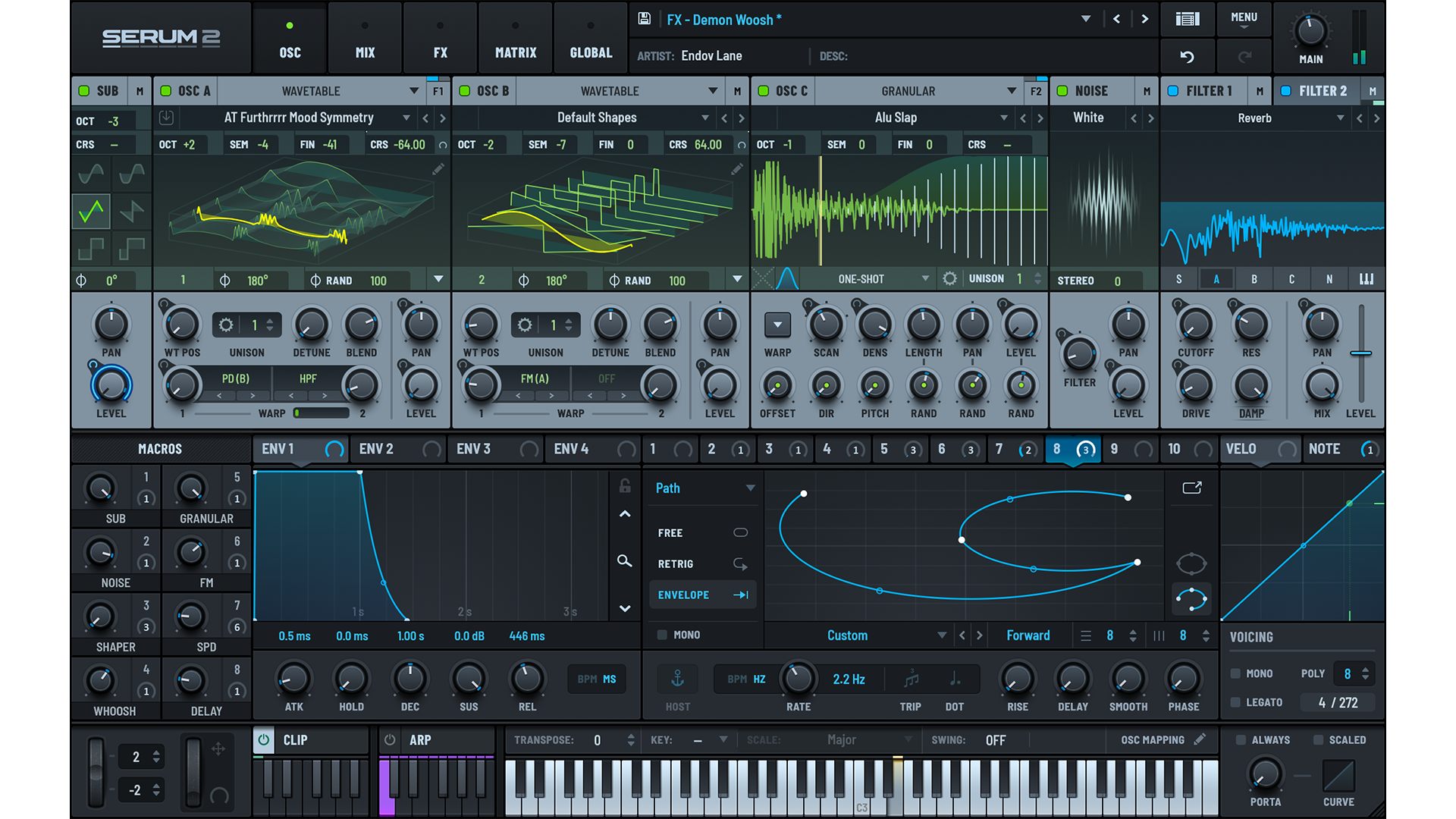
Serum 2's main interface, showing its oscillators, modulation controls and keyboard. The purchase decision concerns payments and authorization; both routes provide the full instrument.
Serum 2 expands beyond the original synth's familiar wavetable workflow with additional oscillator modes, including sample, granular, multisample and spectral approaches. If you are still deciding whether the instrument itself suits you, start with our Serum 2 review. The question here is how to acquire it once it has a clear role in your setup.
Neither payment method makes a preset more useful in a track. Before buying, identify the gap you want to fill: perhaps a particular bass workflow, custom sample textures, or access to a preset library you already use. If you cannot name that gap, postponing the purchase may help more than changing the payment schedule.
You do not need Splice Sounds to rent Serum
Splice confirms that a Sounds subscription is not required for Rent-to-Own. A sample-credit plan and a plugin rental are separate subscriptions. You can use Serum's plan without adding a monthly sample allowance.
This also means that cancelling your Sounds subscription does not automatically cancel a Serum plan. If you want to reduce recurring costs, review each active plan rather than assuming one cancellation covers the entire account. The reverse applies too: stopping the Serum rental does not remove a separate Sounds subscription.
What happens when you cancel or pause payments?
Under Splice's Rent-to-Own guidance, you retain access until the end of your current paid billing cycle. After that, the unfinished rental no longer provides an active license. Your previous payments remain recorded, and you can resume from that progress for as long as Splice continues to offer the product.
A break changes the calendar, not the number of paid instalments required. If you make six payments and then take two months off, you still have six paid months of progress when you return. You have not reached eight paid months merely because eight months have passed.
To cancel, open your Splice account's Plans page, choose the specific Rent-to-Own product and follow the cancellation prompts through to confirmation. Splice documents the process in its cancellation instructions. Check the access end date before scheduling work that depends on the instrument.
Protect your projects before access ends
A saved DAW project is not a substitute for an active plugin license. Before taking a break, render important Serum parts to audio while the instrument still works. Keep the MIDI, the preset and the original project too, so you can make changes when you regain access.
For a lead or bass with a long effect tail, include enough space after the final note. If the track uses automation, check that the render includes its movement. For collaborations, provide the audio part alongside the project so another producer does not need your license just to hear the arrangement.
Freezing tracks can be useful during a session, but dedicated audio exports are a clearer handoff and archive. Open a copy of the project using those rendered parts before ending access if the song has an upcoming deadline.
The desktop app and offline use are the main practical trade-off
During Rent-to-Own, Splice requires its desktop app to refresh authorization regularly; its guidance says to open it at least every three days. Plan around that requirement if you travel, work in a studio without dependable internet, or keep a music computer offline.
The current Splice desktop requirements are macOS 12 or later, or Windows 10 or later. That is an additional requirement alongside the synth and your DAW's own compatibility. An older computer that runs a plugin is not automatically suitable for the current rental-management app.
After you finish paying, Serum 2 uses your Xfer account for permanent activation. It does not use a Serum 1 serial key. Xfer's paid-off activation workflow also supports offline authorization using a machine-specific file prepared with an internet-connected computer. Follow Splice's lifetime-copy activation instructions when you reach that stage.
That distinction matters: offline activation of a permanent license does not remove the periodic checks required during an unfinished rental. If you need the instrument on a disconnected system now, buying outright is the simpler route to investigate.
Already have Serum 1? Check before starting a new plan
Existing Serum owners are eligible for a free Serum 2 upgrade. Splice's Serum 2 FAQ also says active Serum 1 Rent-to-Own customers receive Serum 2 without starting over, with ownership of both when their plan is paid off.
Before opening another subscription, sign in with the account connected to your original purchase or rental. Check your existing plan and upgrade access. A missing installation is a different problem from needing to buy another license.
How to use the three-day trial well
Splice currently offers a three-day trial for Serum 2. Use that short window to answer practical questions about your own computer and projects, rather than spending it only browsing presets.
- Install and authorize it. Sign into the correct Splice account, install through the desktop app, then restart or rescan your DAW if necessary. See our FL Studio plugin detection guide if the instrument does not appear there.
- Build one usable part. Put Serum into a real arrangement and decide whether it solves the musical job you had in mind.
- Check a realistic CPU load. Try the number of instances and voice settings you normally need. A single simple patch does not represent a dense project.
- Save, close and reopen. Confirm that the project recalls its sound and automation on the machine where you will work.
- Make a decision before billing. Check the trial end shown in your account and cancel in time if you do not want the paid plan.
For the installation sequence, Splice's Rent-to-Own installation guide explains the desktop-app workflow. Do the setup before a time-sensitive session, when you can troubleshoot without interrupting a collaborator.
Who should choose each payment route?
Choose Splice Rent-to-Own if spreading the expense is useful, you can manage the authorization checks, and you want payments to count toward eventual ownership. It is particularly practical when you have a specific use for Serum today but prefer to preserve your upfront budget.
Buy outright from Xfer if you are certain you want Serum, can cover the current purchase price, and prefer to finish the payment and licensing decision immediately. This is also worth considering when recurring authorization checks would disrupt your working setup. Check Xfer's current purchase price and requirements before deciding.
Wait or use what you already own if the appeal is mainly the low first payment. Several small plugin plans can become a substantial recurring bill. If a capable free wavetable instrument already covers your needs, our Serum vs Vital comparison can help you decide whether Serum adds enough to justify another purchase.
Conclusion
At the checked prices, Serum 2 through Splice costs $249.75 across 25 payments, compared with $249 upfront from Xfer. The useful advantage is the payment schedule. The main obligations are keeping the rental active for continued use and maintaining its Splice authorization until payoff.
Choose Rent-to-Own when that flexibility helps you make music now. Choose outright ownership when you prefer a completed purchase and the permanent activation workflow from the start. Either way, first check whether your existing Serum license already includes the upgrade.


