

If your mix sounds quiet after export, first check whether the file is actually quieter than the project. A different player volume, missing master effect or comparison with a finished commercial master can all send you towards the wrong fix.
Our advice is to separate two questions: “Did the export change my sound?” and “Is my finished track loud enough?” Answer them in that order. Increasing the limiter before checking the file can hide the cause and damage a mix that was already working.
This guide uses FL Studio examples, but the listening checks also apply to other DAWs. If you need the format and render options themselves, use our FL Studio export settings guide.
Start here: which kind of quiet are you hearing?
| What you notice | What to check first |
|---|---|
| The WAV sounds right in FL Studio but quiet in another app. | Player gain, output device and audio enhancements. |
| The exported mix has lost its density or punch. | Master processing, insert effects and which file you opened. |
| The export matches the project, but released songs sound bigger. | A fair reference comparison and your mix dynamics. |
| Only the uploaded version seems different. | The platform's playback settings and the uploaded file version. |
1. Check the export without changing its gain
Keep the original project saved. Open a new empty project and import the exported WAV. Choose an empty setup with no default limiter, EQ or other master processing. A default template can already contain effects, so check it.
Use the same audio device and monitoring volume as the original session. Check the imported clip's gain and its Mixer route, and keep the comparison path at unity gain: no deliberate boost or reduction. Listen to the same chorus or drop in both projects.
Do not level-match this first check. You are trying to discover whether there is a level difference. Matching it away would hide the evidence. Compare peak and loudness readings over the same passage if you have suitable meters.
Also avoid dragging the finished WAV into the original project and sending it through the mastering chain again. That would process an already processed file a second time.
Our tip: Write down the result before touching anything. “The WAV sounds the same inside FL Studio” is useful evidence. “It feels wrong somewhere” is much harder to troubleshoot.
2. Check the player and your listening volume
If the file plays as expected in the clean project, investigate the app where it seems quiet. Check its volume control, the selected output device and any loudness adjustment or enhancement settings.
Image-Line also warns that sound-card utilities and preinstalled audio apps can add their own processing. A player using that path may sound different from FL Studio using another driver. Keep the listening path as consistent as possible before judging the file.
In FL Studio, distinguish the Monitor Volume control from the Master Mixer fader. The current manual states that Monitor Volume changes listening level without changing rendered levels. The Master fader affects the mix output.
That distinction matters when you have been monitoring loudly. Turning up your speakers can make a quiet mix feel powerful during production, but it does not put that extra volume into the exported file.
3. Check that you exported the intended processing
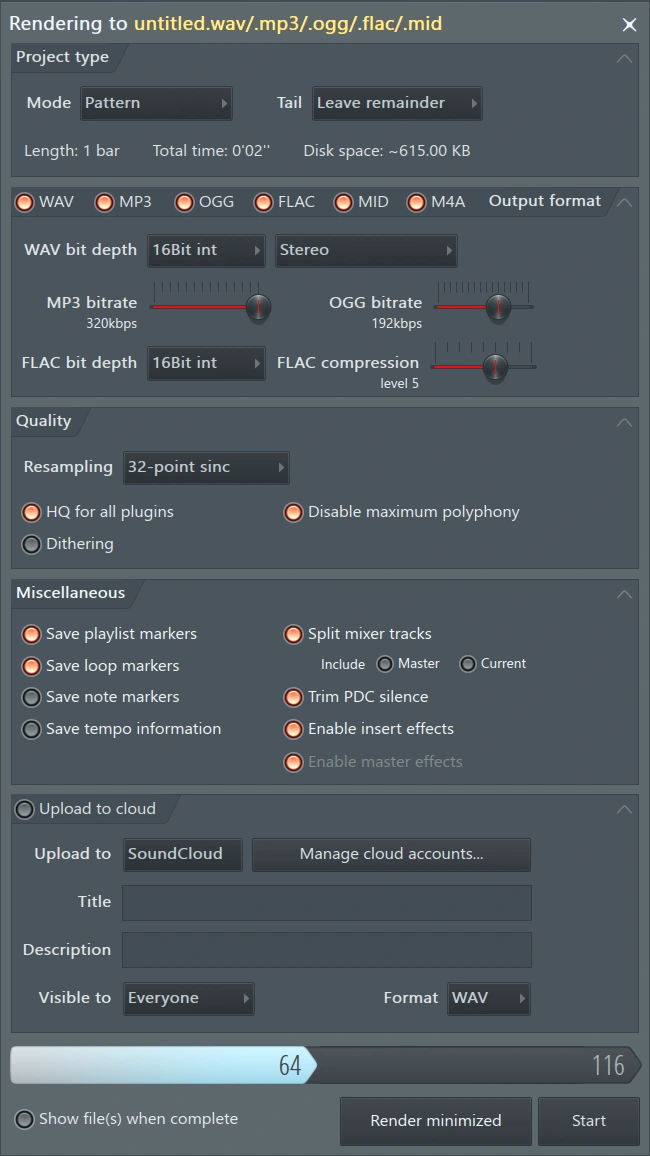
If the file really differs, inspect the export's Enable insert effects and Enable master effects options. A bypassed master limiter can explain why a preview sounds denser than the delivery file. Include the processing you intend for that version.
Also confirm that you opened the stereo master rather than an individual file from Split mixer tracks. Those individual Mixer-track exports bypass the Master chain; Master effects belong to the Master export.
Use a clear filename such as TrackName_Master_v04.wav. Put a premaster and stems in separately named folders. It is easy to compare the wrong version when several exports share the same name.
If instruments are missing too, check their route to the Master. If you get complete silence rather than low volume, start with our FL Studio no-sound checklist.
4. Understand why high peaks can still sound quiet
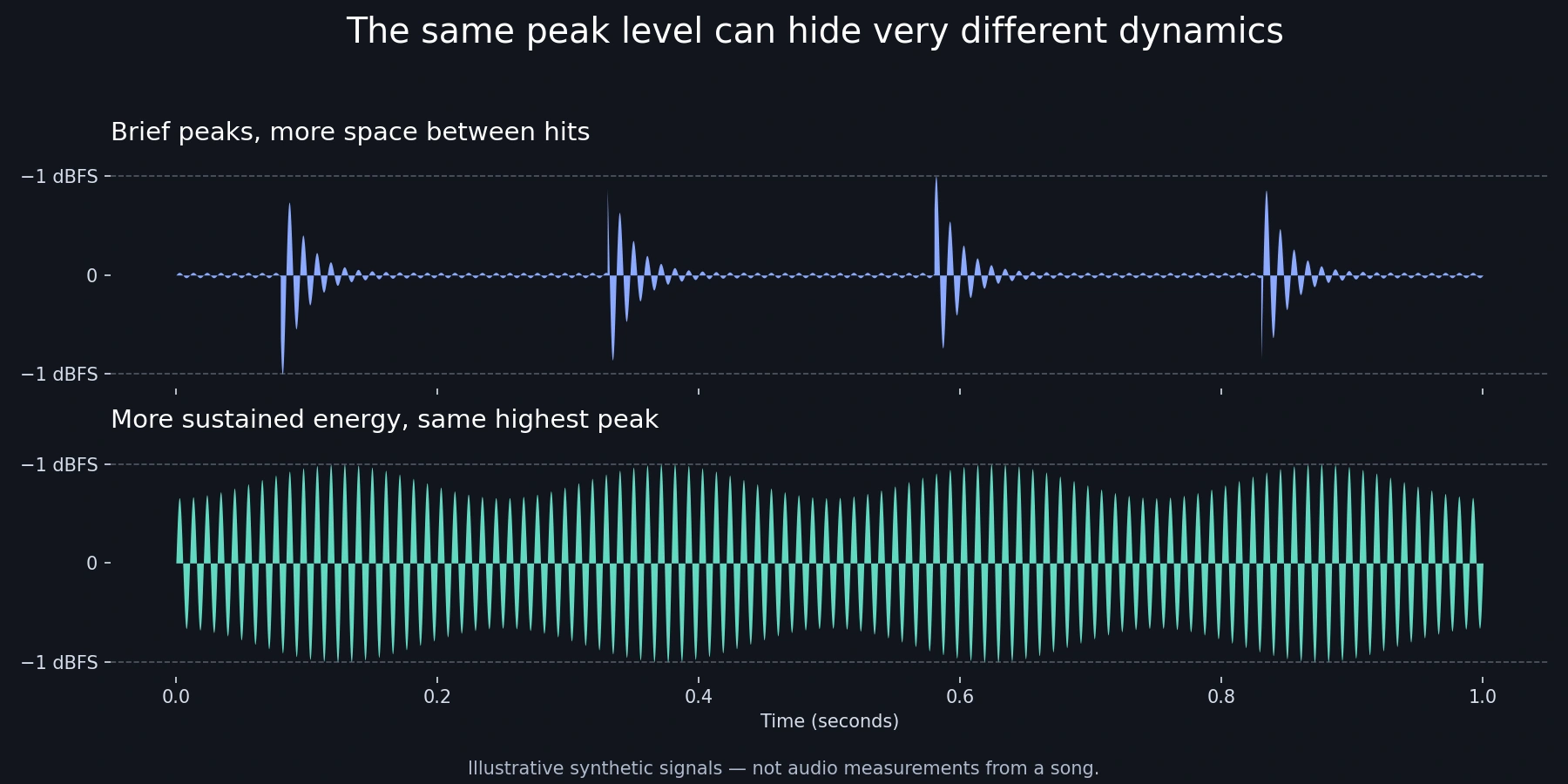
A peak meter shows the highest moments. It does not tell you how much energy fills the space between them. A sharp snare can briefly reach close to the top of the meter while most of the song stays much lower.
A more sustained arrangement can have the same highest peak and a fuller average level. That is why “my mix already peaks near zero” does not prove that it will sound as loud as another track.
Try this: Find what causes your biggest peaks. If one snare hit dominates, try a small level or envelope adjustment on that sound. If the low end overwhelms the chorus, revisit the kick and bass balance before asking the master limiter to handle everything.
Keep changes small and listen to the groove. Removing every transient may raise average level while making the drums feel weaker. Our preference is to keep the impact that makes the track enjoyable, even when that means accepting a little less loudness.
5. Compare with a released track at a similar listening level
Once the export is confirmed, make a second, different comparison: your track against a suitable reference. This time, bring the reference down to roughly your mix's perceived volume before judging tone, punch and vocal placement.
Choose a similar section and arrangement. A sparse verse and a heavily layered drop will naturally feel different. Ask one useful question, such as whether your kick disappears when the bass enters, instead of trying to copy every detail.
You can do this manually with audio files in a clean project. Keep the reference away from processing intended for your mix and switch between tracks rather than playing them together.
For a more convenient workflow, REFERENCE 3 offers automatic level matching. We would consider it for repeated comparisons, rather than as a required purchase for fixing one export.
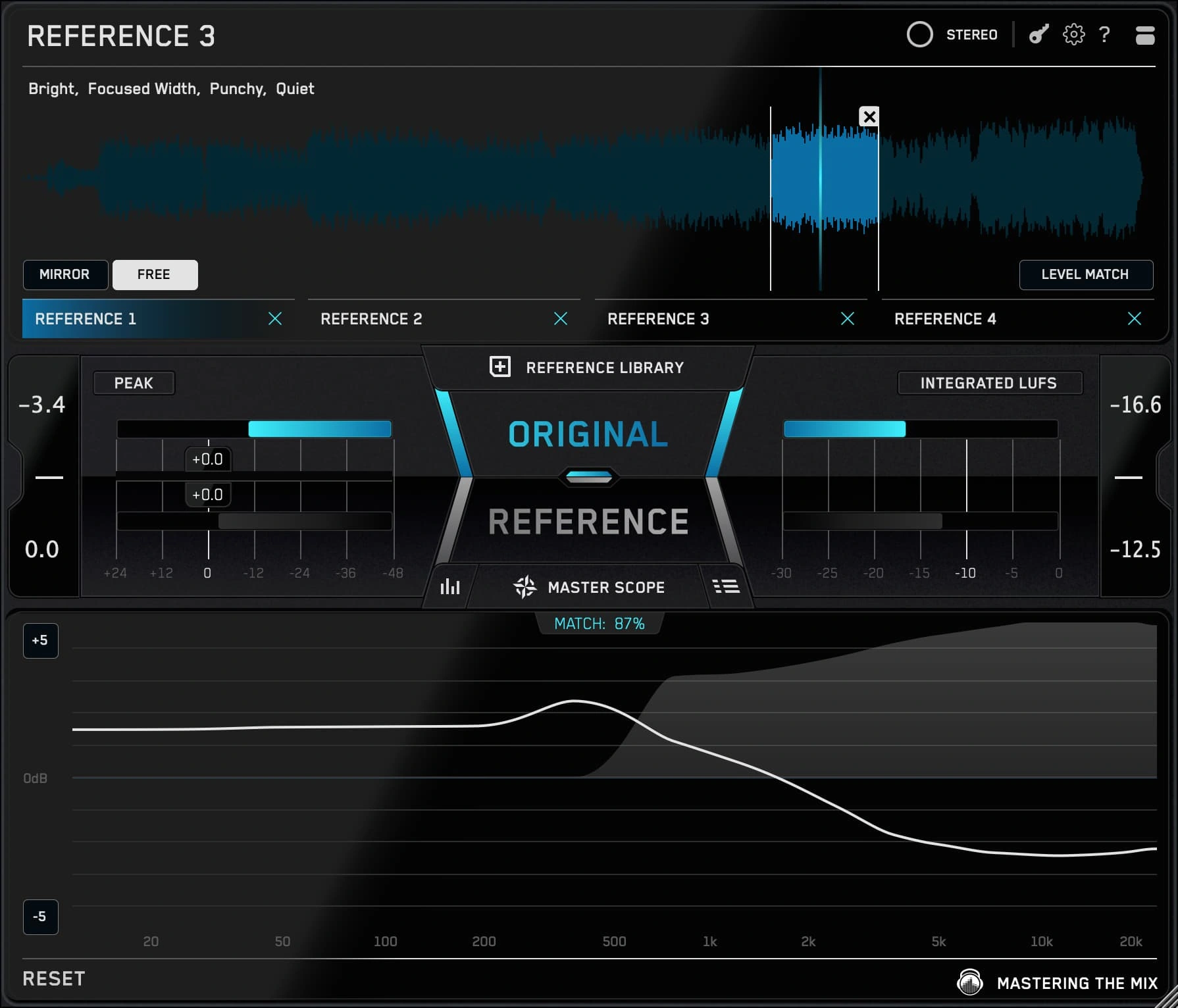
This is an affiliate link. We may earn a commission if you buy through it.
Keep referencing adjustments out of the final delivery. In particular, the REFERENCE manual warns that some Level Match modes can alter the original's bounced level. Check that setup before rendering.
6. Raise loudness only after you know the cause
If your export matches the project and the mix balance works, you may simply be comparing a premaster with a finished master. A premaster can be deliberately quieter because another person will complete that stage.
For a finished version, try limiting gradually and listen at a consistent monitoring level. Check the kick, snare, bass and vocal whenever you increase the drive. Stop when extra density starts costing more impact or clarity than it adds.
We would save two versions and compare them at matched listening levels. If the louder version loses the snare's attack or makes the chorus tiring, back off. A convincing result matters more than the largest possible meter reading.
Changing a WAV from 24-bit to 32-bit float is not a loudness treatment. Neither is increasing its sample rate. Keep delivery-format decisions separate from the musical decisions that make the mix feel strong.
7. Check plugin render behaviour and streaming playback
If the problem survives the basic checks, save a copy and investigate plugins individually. Image-Line notes that draft versus render quality and oversampling can change real-time and offline output. Compare the same short passage while changing one relevant setting.
Do not expect every render to be sample-identical when instruments or effects use random variation. Listen for the consistent problem you are trying to solve, rather than treating every tiny difference as an export failure.
If the difference appears only after upload, check playback normalization. Spotify states that its normalization applies during playback and does not rewrite the uploaded audio beforehand. Device behaviour and playback settings also matter.
Do not treat one platform's normalization figure as a universal mastering target. First confirm the correct version was uploaded, then judge the result in the playback context where the problem occurs.
SoundShaper opinion
We would rather spend five minutes identifying the difference than spend an hour rebuilding the master chain. Our preferred order is simple: confirm the file, check the listening path, check the processing, and then decide whether more loudness would help.
The most useful habit is keeping a clean place to audition exports. It gives you somewhere to answer “what did I actually deliver?” without the original project's routing and effects getting in the way.
Conclusion
A quiet export needs a diagnosis before it needs a boost. Once you know whether the cause is playback, missing processing or the mix's dynamics, you can make a focused change and export another clearly named version.
Listen to that final file all the way through. Check the ending, the loudest section and any earlier problem spot before sending it.
Sources
Technical details checked against Image-Line's export troubleshooting guide, FL Studio levels and mixing documentation, export documentation, the REFERENCE manual and Spotify's normalization explanation. Workflow suggestions are SoundShaper's editorial recommendations.
![[background image] image of recording equipment (for a musician & band)](https://cdn.prod.website-files.com/68efa70811edd8e5af30a90d/6ae28f3ffeabaf5b76db2580_6ae28f255000f820b159a320_crystalline-review-cover.webp)
![[background image] image of recording equipment (for a musician & band)](https://cdn.prod.website-files.com/68efa70811edd8e5af30a90d/6ae28e7e5d1572089570ac87_6ae28e5eead33b2db2a18b5f_transit-2-review-cover.webp)
![[background image] image of recording equipment (for a musician & band)](https://cdn.prod.website-files.com/68efa70811edd8e5af30a90d/6ae28d603a57759da71022d6_6ae28d41f6af13c91dee9c76_drumazon-2-review-cover.webp)