
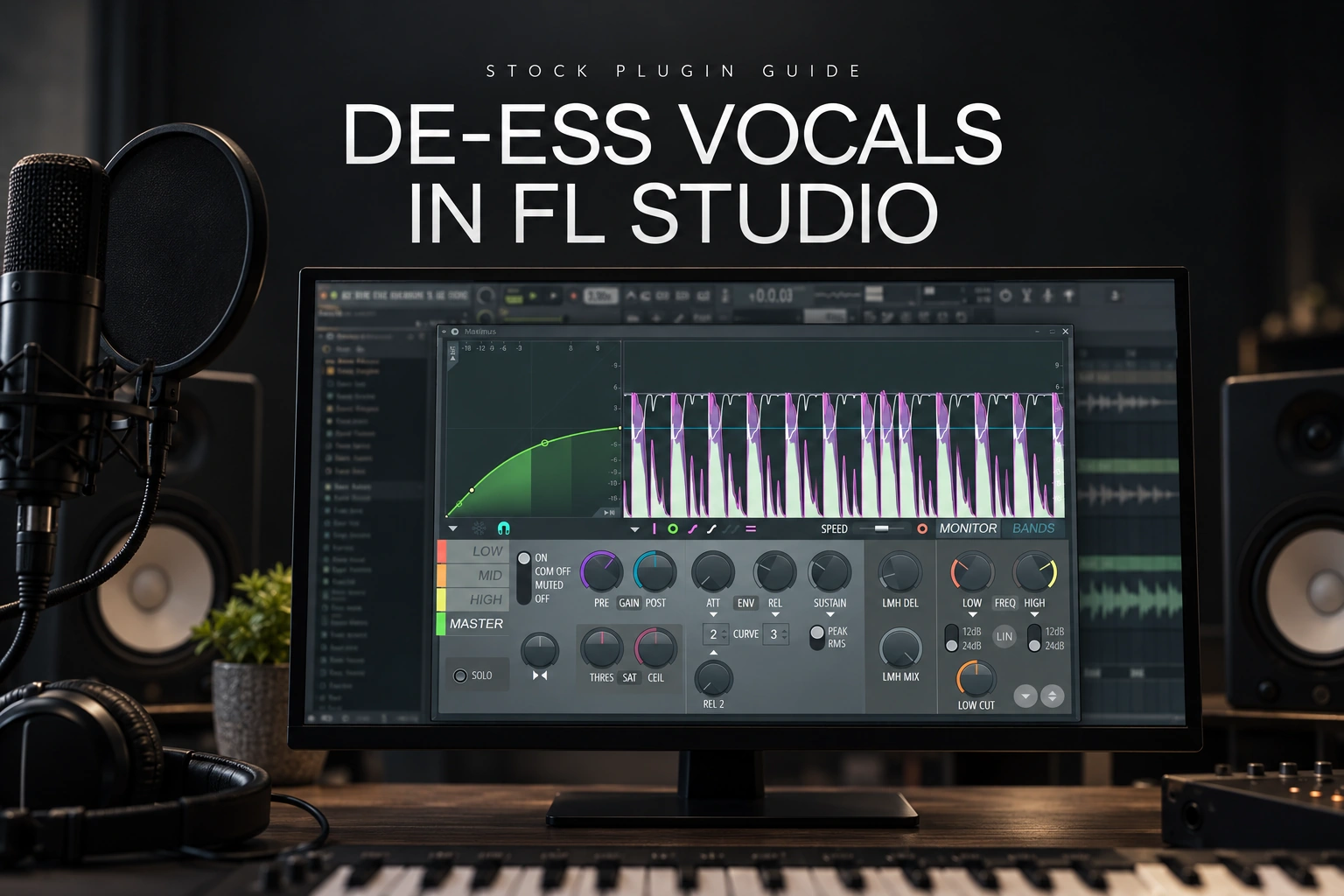

To de-ess vocals in FL Studio, put Maximus on the vocal's Mixer track, load the De-esser Split Band preset and adjust it so the sharp consonants become less distracting. Keep checking the whole phrase: the aim is a comfortable “s,” not a missing one.
You can also use Fruity Multiband Compressor or edit individual sounds with volume automation. This guide walks through those stock options before considering a dedicated plugin.
We would start with the stock setup and one difficult line. There is little value in building a complicated vocal chain before you can hear what one de-esser is improving.
First, check that sibilance is the actual problem
Sibilance is the hissy energy in consonants such as “s” and “sh.” It often sits somewhere in the upper frequencies, but the useful range changes with the singer, microphone and performance.
Listen for the event, rather than choosing a frequency from the singer's gender. A broad search around 4–10 kHz is reasonable, but it is a listening area, not a mandatory cut.
If a held vowel hurts throughout the note, that may need a different correction. Our guide to harsh vocals covers the difference between overall brightness, resonances and sibilance. Here, we focus on brief consonants inside FL Studio.
A useful practice loop: choose a line with one sharp “s,” a longer “sh” and a normal vowel. That gives you something to catch and something to preserve.
Method 1: de-ess with the Maximus preset
Check that Maximus is licensed in your FL Studio setup. The current manual lists it in Producer Edition and higher; older versions or licences may differ. If it opens in trial mode, check whether your licence includes it before relying on it in a saved project.
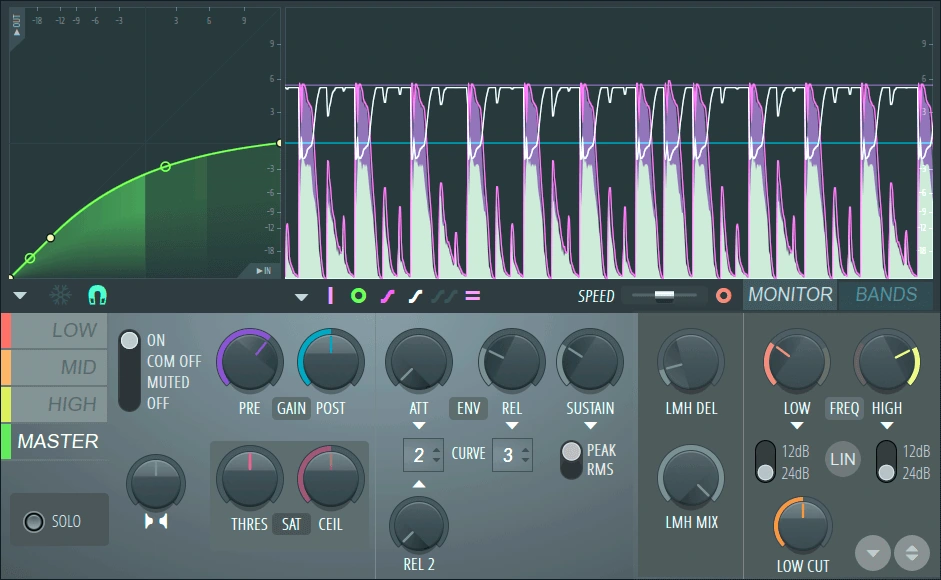
1. Add it to the vocal track. Select the vocal's Mixer insert and load Maximus into an effect slot. Work on the lead rather than putting the correction across drums and instruments.
2. Load De-esser Split Band. Open the plugin's preset menu and choose that preset. Image-Line's documented setup uses MID for compression, LOW with COMP OFF, and HIGH and MASTER off. Do not assume the HIGH tab is the active processor.
3. Find the boundary. Select MID. Adjust the LOW crossover frequency so the processed region starts around the troublesome sibilance. Use SOLO briefly to hear the band, then turn SOLO off before judging the result.
4. Adjust the amount. Raise the selected band's PRE gain gradually to drive sibilance into the preset's compression curve. Reduce POST by the same amount to preserve the level of uncompressed material. Avoid applying that move to MASTER.
5. Check the timing. Adjust ATT and REL if short attacks escape or the following vowel stays dark. Compare several phrases and bypass the plugin regularly. Keep the setting only while the words remain natural.
Why there is no universal Maximus threshold number
Maximus uses a compression curve instead of a conventional threshold knob. That curve and the signal level determine when compression starts. Copying a PRE value from someone else's recording will not guarantee the same result on yours.
For a first pass, keep the preset's curve and timing rather than changing everything. Find the frequency region, adjust the drive, and listen. Once those changes make sense, investigate the other controls.
Our stopping point: the consonant still tells you what the word is, but no longer jumps ahead of the singer. If the whole phrase becomes softer or darker, back off and check the band selection.
Method 2: use Fruity Multiband Compressor
This option is useful if you prefer familiar threshold, ratio, attack and release controls. The idea is to compress the upper band while allowing the lower vocal range to pass.

Start from a reset instance. Set LOW and MID to B for bypass, not M for mute, and keep their gain controls at 0 dB. Leave HIGH active. Disable the output limiter for this exercise and keep overall gain at 0 dB (no boost or cut).
Keep the band crossovers joined. The plugin has separate cutoff controls that can create gaps, so match the MID upper cutoff with the HIGH lower cutoff around your chosen boundary. Do not remove a slice of the vocal while trying to compress it.
| Control | First experiment | What to listen for |
|---|---|---|
| Upper-band boundary | Try around 6 kHz, then move it. | Catch the hiss without dulling the voice. |
| Ratio | About 4:1. | Enough control without obvious flattening. |
| Attack | Try 1–3 ms. | The start of the consonant is controlled. |
| Release | Try 50–100 ms. | The voice recovers before the next sound needs its brightness. |
| Threshold | Lower until the difficult consonants trigger. | Normal phrases should not stay heavily compressed. |
These are SoundShaper starting experiments, not an official preset. Aim for a few dB of reduction on the worst sounds initially, then judge the full line. The C meter shows compression; use it to check what is happening, without chasing an exact number.
Once you hear an improvement, play a quieter verse and a louder chorus. If one setting cannot handle both naturally, use a local edit or adjust the processing between sections.
Method 3: lower one stubborn consonant manually
Sometimes one word forces the automatic processing to work too hard. We would fix that event separately instead of making the entire take darker.
Add Fruity Balance to the vocal insert. Right-click its Volume knob and create an automation clip covering the relevant passage. Keep the original level before and after the problem sound, and draw a short, smooth dip during it.
Zoom in, but keep replaying the complete word. Try a small reduction first. Put the points close enough to leave the neighbouring vowel intact, with smooth transitions rather than abrupt jumps.
Place the automation before or after other processing deliberately. A dip before a compressor changes what drives it; a dip afterwards changes the already processed output. Keep one original version available while learning the difference.
Where should the de-esser go in the vocal chain?
Choose the position by listening to where the problem appears. For a first test, put it after your main vocal compression and tonal EQ, before the signal feeds reverb and delay. This lets you hear what those earlier stages leave behind.
Then compare another position if necessary. If sharp consonants already cause trouble before compression, an earlier correction may help. If an air boost creates the problem later, revisit that boost or control the result after it.
Our tip is to move one processor at a time. Check the same sentence at a comparable volume, and keep the version where the singer sounds most believable. There is no useful prize for following a chain order that makes your take worse.
What if the vocal becomes dull or lispy?
The whole take loses air: the boundary may be too low or the processing may be active too often. Raise the boundary or ease the amount, then check an ordinary phrase.
The singer seems to lisp: too much of the consonant is disappearing. Reduce the correction and treat the worst word manually if needed.
The beginning still spits through: investigate the attack or detection region before increasing reduction everywhere.
The vowel after the “s” goes dark: try a shorter release and check that the processor recovers naturally.
The problem returns with effects: listen to reverb and delay separately. A bright repeat or reverb tail may need attention on its own return.
Is a dedicated de-esser worth buying?
We would consider one when repeated setup slows down your sessions. FabFilter Pro-DS gives you a focused interface with Single Vocal detection, a selectable trigger range and a Range control that limits the amount of de-essing.
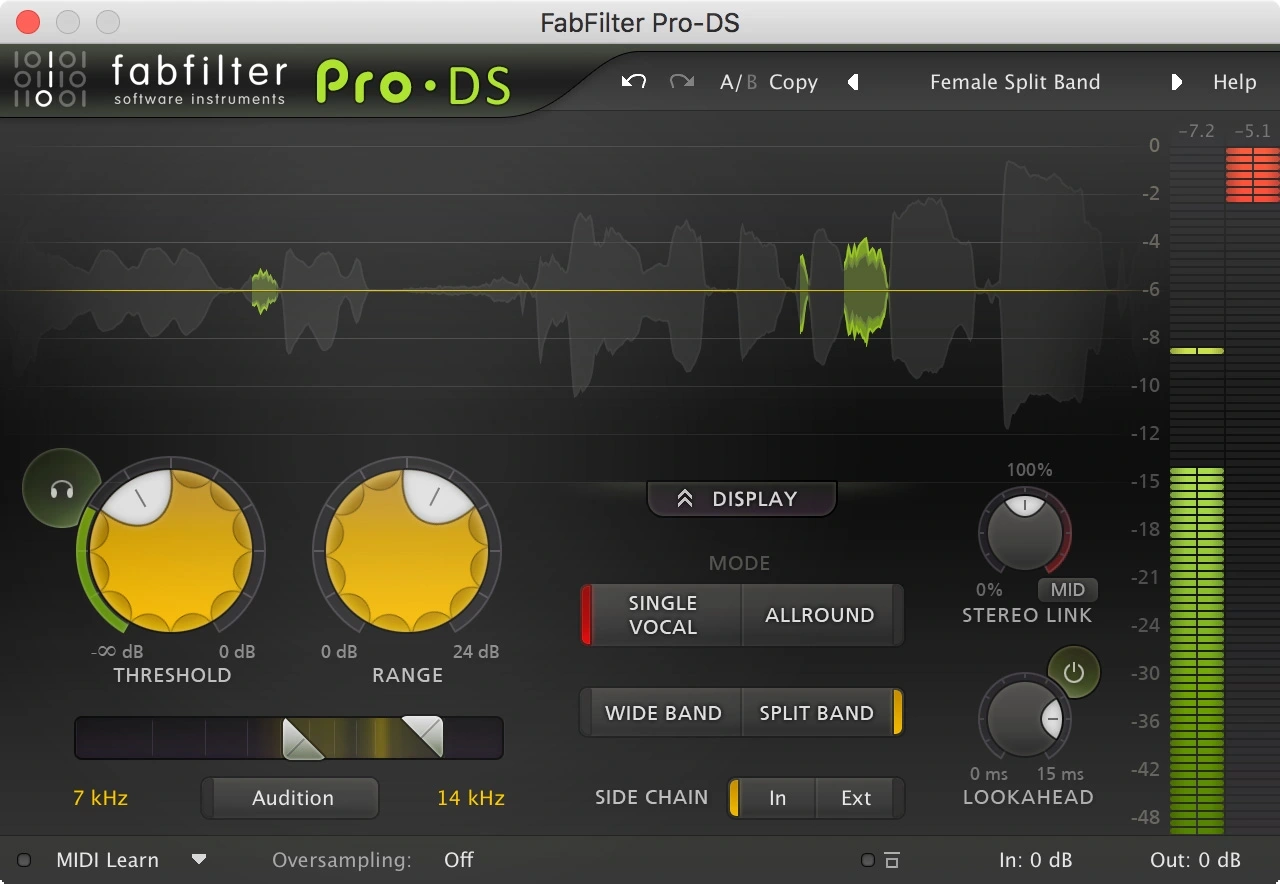
For example, use the trigger audition to check whether you are detecting the sharp consonant or mostly bright vowel energy. A clearer view of that decision can be useful, but buying another plugin does not replace listening to the take.
If you already own a vocal suite, check its de-esser first. Our Nectar edition comparison helps you see where that suite fits into a wider vocal workflow.
SoundShaper opinion
Maximus is a sensible first choice when you already have it. The preset saves setup time, and learning what its active band does is more useful than collecting several “perfect vocal” presets.
We would combine light automatic control with an occasional manual dip. One unusually sharp word should not decide how dark the rest of the performance becomes.
Most of all, keep the consonants that make the delivery feel confident. A rap vocal needs clear words; a soft vocal still needs expression. Smoothness helps only while the performance keeps its character.
Conclusion
Start with one vocal, one short loop and one de-esser. Adjust the region and amount until the sharpness settles, then check quieter lines, louder lines and the full beat.
When the vocal stays understandable and the sibilants stop pulling your attention away from the song, leave the setting alone. For the next mixing decision, see our guide to making vocals sit in the mix.
Sources
Controls and workflows checked against Image-Line's Maximus de-essing tutorial, Maximus controls, Fruity Multiband Compressor manual, Fruity Balance manual and stock de-essing overview, plus iZotope's de-essing explanation and FabFilter's Pro-DS documentation. Suggested numeric settings are editorial starting points.
![[background image] image of recording equipment (for a musician & band)](https://cdn.prod.website-files.com/68efa70811edd8e5af30a90d/6ae28f3ffeabaf5b76db2580_6ae28f255000f820b159a320_crystalline-review-cover.webp)
![[background image] image of recording equipment (for a musician & band)](https://cdn.prod.website-files.com/68efa70811edd8e5af30a90d/6ae28e7e5d1572089570ac87_6ae28e5eead33b2db2a18b5f_transit-2-review-cover.webp)
![[background image] image of recording equipment (for a musician & band)](https://cdn.prod.website-files.com/68efa70811edd8e5af30a90d/6ae28d603a57759da71022d6_6ae28d41f6af13c91dee9c76_drumazon-2-review-cover.webp)