


Both plugins can catch the front of a loud vocal and add density to a drum room track. If you mainly want the familiar 1176 workflow and two versions of that sound to choose from, we’d start with Waves CLA-76 at the $29.99 sale price we checked. Arturia Comp FET-76 makes more sense if you often need to filter what triggers compression, cap how far it goes or change the detector timing. The quickest way to decide is to give both the same vocal and drum parts and compare them at similar levels.
Features come from Arturia’s and Waves’ documentation. The U.S. prices were checked on November 10, 2026. The examples are starting settings to try on your own tracks.
Arturia Comp FET-76 vs Waves CLA-76 Quick Comparison
| Decision | Arturia Comp FET-76 | Waves CLA-76 |
|---|---|---|
| What you can change beyond the main knobs | Detector EQ, Compression Range, Time Warp and external sidechain | Bluey and Blacky revisions and switchable modeled noise and hum |
| Parallel processing | Built-in Mix with a dry-to-compressed blend | Built-in Mix with separate output Trim |
| Help with gain matching | Link moves Input and Output in opposite directions | Auto Makeup in V16, plus manual Output and Trim |
| Regular U.S. price | $99 at Plugin Boutique | $149 at Plugin Boutique before discounts |
The controls you use on both plugins
Start with a ratio, set the meter to GR, and raise Input until the peaks you care about move the needle. Both use the familiar 4:1, 8:1, 12:1 and 20:1 ratio choices plus an All mode. On both, Attack and Release go from 1 for slowest to 7 for fastest. The same dial position is a starting point for comparing them. The models can react differently to the same audio.
Check the meter again if you change ratio. It changes where compression begins as well as how strongly the plugin compresses the signal. When you move from 4:1 to 8:1 and the needle moves less, adjust Input by ear and meter before deciding which setting is more aggressive. Set Output to make the comparison fair. Both plugins also have a Mix control, so you can blend an aggressive setting into the dry track without building a separate return.
Waves gives you Bluey and Blacky in one plugin
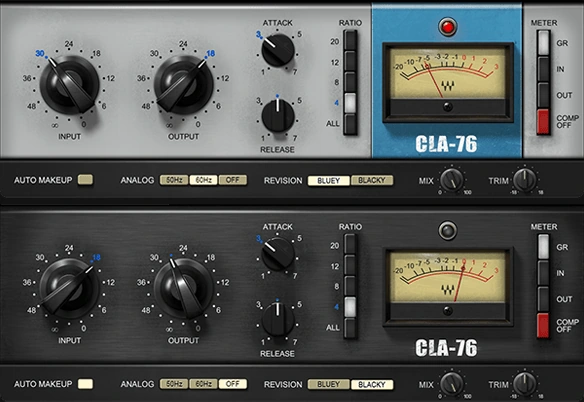
The Revision switch lets you choose between Bluey, Waves’ model of a Revision B unit, and Blacky, its model of a Revision D-LN unit. Waves documents differences in gain stages, timing and distortion. Treat the switch as a choice to audition on the source. Compare them on the same phrase with similar gain reduction and output level before attributing the difference to the revision.
Keep Analog off when comparing the revisions so modeled noise and hum stay out of the judgment. The 50 Hz and 60 Hz choices let you add those characteristics if you want them. Comp Off stops gain reduction while retaining the modeled signal path for a color-only comparison. In Waves V16, Auto Makeup helps compensate for gain changes. You can still check manually using Output and Trim if the louder version keeps sounding better.
Arturia gives you a separate panel for detector decisions
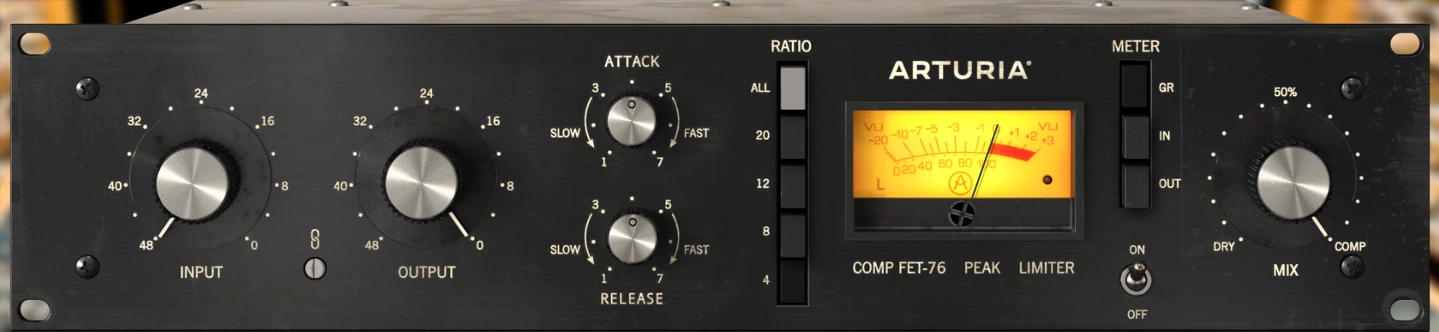
Arturia’s front panel is based on an 1176-style D/E model. If the basic compression sounds right and one hit still causes a problem, open the advanced panel using the double arrow in the top toolbar. The High Pass Filter changes how much low end the detector hears. Compression Range caps how much gain reduction the plugin applies. Time Warp shifts when detection happens relative to the sound. Those controls let you solve different problems while keeping your overall Input and ratio choices.
Use Link as a first pass when driving Input, then unlink Output for the final match. For a stereo drum bus, start with Linked detection. Dual lets the two channels react independently, which can move the apparent position of a hit; compare the centre of the kit before choosing that mode. Mid Only uses the mid signal for both detection and compression, leaving the side component uncompressed.
Try both on a lead vocal with one loud phrase
Duplicate a dry vocal or use two otherwise identical channels, then solo one at a time. Loop a loud word followed by a quieter one. Set both plugins to 4:1, Attack 3, Release 4 and a fully compressed Mix. Start on Blacky in Waves with Analog off. In Arturia, leave Time Warp at zero and the detector filters at their neutral settings. Leave Waves Auto Makeup off for the first manual match. Set Input independently so the louder syllables show roughly 3 to 5 dB of gain reduction, and match the output levels.
Listen for whether the loud word comes back into place without losing its consonant. If a T or K is still too sharp, move Attack a little faster in both. If the quieter word immediately after it sounds held down, move Release faster. Adjust one control at a time. The result that fits the beat is more useful than forcing the meters to match exactly on every syllable.
Check whether the problem is a loud word or a plosive
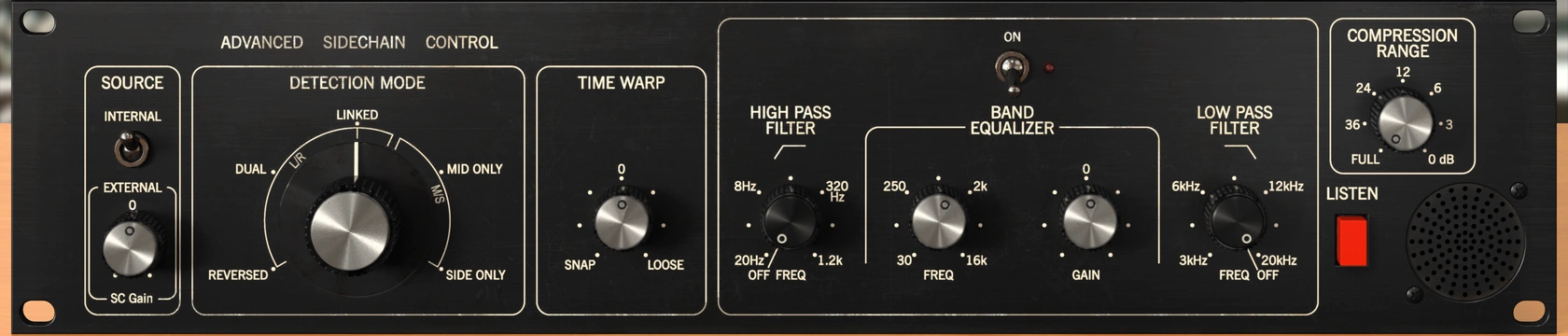
If a low P sound makes the next note duck, try High Pass Filter in Arturia’s Advanced panel. Press Listen while adjusting it until the detector hears less of the puff. Turn Listen off, replay the phrase and check whether the sung note returns to its place. The detector change leaves the audio path intact. If the actual plosive is too loud in the recording, edit its level or filter the audio upstream.
On Waves, try reducing that plosive with clip gain first, then bring Input back to where the rest of the phrase reacts the way you want. If the vocal still feels flat after louder words, compare the revisions and check release. We’d choose Arturia for this workflow if we regularly want to change how low frequencies trigger the compressor without touching the underlying vocal. If a small edit and a simple 4:1 setting get you there quickly, CLA-76 can already cover the job.
Try a parallel drum setting without losing the dry snare
Use the same drum loop for both, with a room hit or open hi-hat after the snare. Begin at 12:1 with Attack in the slower half and Release in the faster half. Temporarily move Mix toward wet to hear the compressed sound clearly. Drive Input until you hear the room coming up between hits. Switch to All, readjust Input, and match the output before comparing the new texture against 12:1.
Bring Mix down to about 15 to 25% wet in each plugin and play the rest of the track. The useful comparison is what the layer adds between hits. If it makes the cymbals louder than the dry snare, lower the wet blend before changing the entire drum bus level. In Waves, try Bluey and Blacky with the same loop and trim their levels after switching. Keep the revision that adds the type of room texture you want.
In Arturia, try a small change toward Loose in Time Warp if the wet layer smooths away too much of the initial hit. Positive Time Warp delays detection, which can let more of a short transient through. Try a tighter Compression Range if one fill gets pulled down much more than the rest of the pattern. Compare one change at a time at the same dry/wet balance. The point is to hear whether the extra control actually improves your drum sound.
Separate circuit color from compression on bass
Use a bass passage with a clear pluck and a long held note. Set both plugins to 4:1 and Mix fully wet. Drive each until the louder notes show about 2 to 3 dB of gain reduction. Level-match with Output or Trim and listen for the shape of the pluck and how much the held note moves. If the low note buzzes or roughens when the meter recovers quickly, slow Release before changing ratios.
Now make a color-only pass. In Arturia, move Compression Range to 0 dB. In Waves, use Comp Off and leave Analog off so you can judge the modeled preamp without added hum. In either case, match output again because removing gain reduction changes the level. Compare each color-only setting against full bypass. If a bass note gains the definition you wanted and already sits evenly in the mix, you can keep the color-only setting. If the pluck still sticks out, bring the compression back and adjust Attack while listening to that note.
Conclusion
Buy Arturia when you want more control over what triggers gain reduction
Arturia is our pick if you frequently run into a plosive, low note or standout drum hit that needs a detector change while the rest of the setting works. Sidechain EQ, Time Warp and Compression Range are useful reasons to pay for the difference. At the checked regular price of $99 USD, we’d test one of those controls on a current session before choosing it.
Buy Waves when the two revisions are the choice you want
We’d choose CLA-76 if we wanted a familiar 1176-style compressor with two modeled revisions and a quick way to blend it in. Waves listed $149 USD as the regular reference price and $29.99 USD as the current price when checked on November 14, 2026. At that sale price, it’s the better-value starting point if you can get the vocal and drum examples working with the core controls.
If you already own one, start with the exercises before buying the other. Matching loudness, tweaking the release and adding a dry blend can solve many of the same problems. For more buying options, see our compressor plugins under $100 guide. For the basics of threshold and ratio, read what a compressor does in music production.
Arturia and Waves documentation
Input, ratios, detector controls, Compression Range and Time Warp. Arturia Comp FET-76 user manual
Bluey and Blacky, Analog, Mix, Trim and the current Waves interface. Waves CLA-76 user guide


