


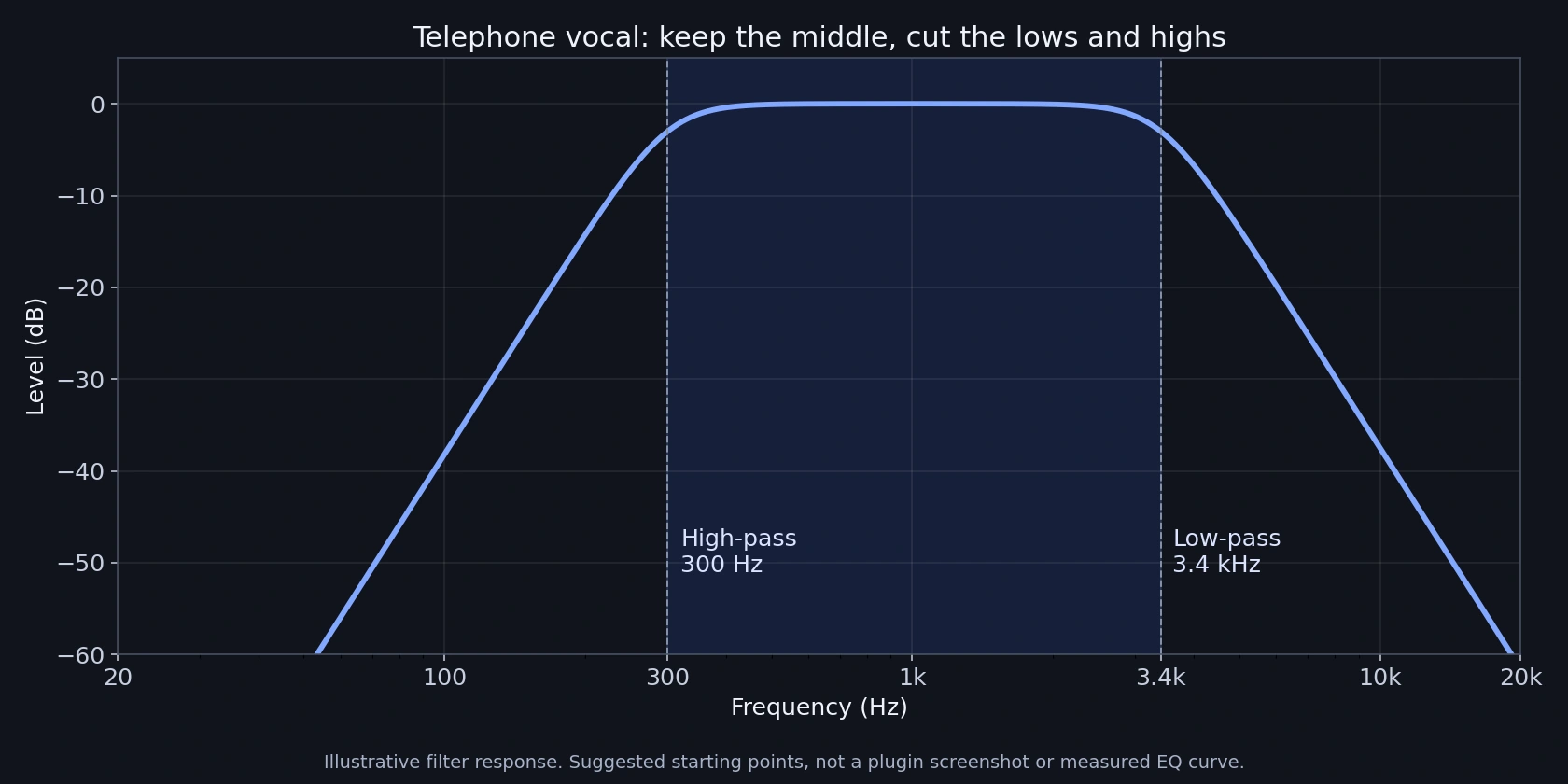
To make a telephone vocal effect in FL Studio, use Fruity Parametric EQ 2 to cut the low and high frequencies. Start with a high-pass filter around 300 Hz and a low-pass filter around 3.4 kHz. This leaves the middle of the voice, giving it a narrow, phone-like sound.
Those are starting points, not rules. Adjust them until the words remain clear and the effect fits your track. You do not need an extra plugin for this basic version.
Below, we explain the stock-plugin method first. Then we show a starting workflow with Tapechild TELECOM for more creative phone, radio and broken-connection effects.
What creates the telephone sound?
A full vocal has low weight, clear mids and bright high detail. For this effect, you remove much of the weight and brightness while keeping enough of the middle to understand the words.
High-pass: lets higher frequencies through and cuts the lows.
Low-pass: lets lower frequencies through and cuts the highs.
Together, they leave a smaller range in the middle. The names can be confusing at first, so remember that they describe what passes through the filter.
Step 1: put the vocal on its own Mixer track
Select the vocal's channel in the Channel Rack. Open the Mixer, select an unused insert and use the Mixer track's routing command to route the selected channel to it. Image-Line also documents Ctrl+L for this routing action.
Name the insert something clear, such as Phone Vocal. Play the vocal and check that this track's meter moves. Add the effect here, rather than on the Master, so the rest of the song stays clean.
If you only want the effect on an ad-lib, use a separate audio channel for that phrase. Simply placing a copy on another Playlist row does not give it separate Mixer processing. When clips share an audio channel, use Make unique for the copy before assigning its channel to another insert.
Our tip: begin with one short phrase. It is easier to judge the effect when you know exactly which words should change.
Step 2: add Fruity Parametric EQ 2
On the vocal's Mixer insert, open an empty effect slot and choose Fruity Parametric EQ 2. Start with a flat setting.
Right-click Band 1's numbered point. Choose Type, then High pass. Set its frequency near 300 Hz.
Right-click Band 7. Choose Type, then Low pass. Set its frequency near 3.4 kHz, which is 3,400 Hz.
Use the FREQ control for the selected band to adjust its frequency. Leave the other bands flat for now. You are changing the filters' shapes and frequencies, rather than just pulling two ordinary EQ points down.
Try 24 dB per octave slopes as a starting point. A slope controls how quickly a filter cuts beyond its cutoff. Steeper filtering makes the separation more obvious; gentler filtering leaves a softer change.
Step 3: adjust it for your voice
Play the phrase with the beat. The aim is a clear effect, not the thinnest voice possible.
Too much weight left? Move the high-pass cutoff up slightly.
Too thin? Move the high-pass cutoff down to bring back more body.
Too dull or hard to understand? Raise the low-pass cutoff to keep more high detail.
Too bright for the phone effect? Lower the low-pass cutoff a little.
For our suggested first comparison, try the 300 Hz / 3.4 kHz setting, then a wider 200 Hz / 5 kHz version. Keep whichever suits the voice. These values are creative suggestions, not a promise to reproduce a particular telephone.
Our advice is to keep the words clear before adding anything else. If the phrase already works, you can stop here.
Step 4: add a little distortion if you want grit
For a rougher sound, try Fruity Fast Dist before the EQ. This gives the filter a chance to remove some of the new high detail created by distortion.
Use PRE and THRES to explore the drive, compare the A/B distortion types, then reduce MIX if the effect is too strong. POST controls the level after distortion.
Start quietly. Match the processed level reasonably closely to the clean version before deciding whether the distortion helps. A louder vocal is not automatically a better effect.
Distortion is optional. We would leave it out if the filtered vocal already has the right character.
Use the effect on selected words or sections
A telephone vocal often works well on an intro, an answer phrase or the last line before a chorus. Returning to the clean voice gives the next section a clear contrast.
The simplest approach is to keep the selected phrases on a separate, uniquely routed audio channel. That way, you do not need to automate the whole lead chain.
For a moving filter effect, automate the cutoff. Right-click the native EQ's frequency control and choose Create automation clip. Edit the line in the Playlist to move from a narrow sound toward a more open one.
Automation can control other routed parts too if they share that Mixer insert. Check the routing first, and make sure the filter returns to the setting you want after the transition.
Want more creative effects? Try TELECOM
The EQ method changes the frequency range. Tapechild TELECOM adds a different creative route, with simulated phone, radio and modem paths, codecs, noise and connection damage.
What we like about that approach is the freedom to get creative with vocals and instruments. You can go beyond a clean filtered voice and give a phrase a rougher or less stable character.

A simple TELECOM starting workflow
1. Load it on the effect vocal's Mixer insert. Compare it with the stock chain bypassed first, so you hear what TELECOM contributes on its own.
2. Choose VOCAL as the source and try CELL. Leave the codec on AUTO as a starting point. Compare it with another path if you want a different character.
3. Begin with a clean connection. Then introduce damage slowly. Keep enough of the phrase to understand the important words.
4. Set MIX for the role. More wet signal makes the treatment more obvious. A lower amount blends it with the original voice.
5. Compare in the full track. Check the words, volume and timing of the return to the clean lead.
This is a suggested exercise, not a fixed preset or a reported listening test. Our TELECOM review covers more uses for vocals, drums and instruments.
Common problems and quick fixes
The vocal still sounds too clean. Check that the audio reaches the insert with the effect. Then bypass the EQ to confirm it is changing the sound. A separate dry copy playing at the same time can hide the treatment.
The effect disappears behind the beat. Check its level in the mix. Try a wider filter range before adding more distortion.
The words sound sharp or tiring. Reduce distortion, undo any large midrange boosts and listen again. You do not need to boost the middle just because you cut the sides.
The whole beat changes. The effect may be on the Master or a shared bus. Move it to the intended vocal insert.
You hear clicks at the edits. Check the clip boundaries and use short fades where needed. FL Studio's Audio Clip fade controls help smooth those edges.
SoundShaper opinion
Our first choice for a simple telephone vocal is the stock EQ method. It teaches you what creates the effect and lets you adjust it without buying anything extra.
TELECOM becomes more interesting when you want the sound to do more: break up, add texture or turn an ordinary phrase into a creative effect. That is a useful reason to consider it.
Our main tip is to leave some contrast in the track. A short phone-style reply around a clean lead can say more than putting the effect on every line.
Conclusion
Start with a high-pass near 300 Hz and a low-pass near 3.4 kHz in Fruity Parametric EQ 2. Adjust the range around the voice, then add distortion only if the song needs it.
For more creative phone and radio textures, explore TELECOM on a separate vocal phrase. Keep the words clear and judge the result with the beat playing.
Sources
Steps checked against Image-Line's manuals for Fruity Parametric EQ 2, the Mixer, Audio Clips, Automation Clips and Fruity Fast Dist. TELECOM features checked against Tapechild's official page. Checked 25 October 2026. Filter values are SoundShaper's suggested starting points.
![[background image] image of recording equipment (for a musician & band)](https://cdn.prod.website-files.com/68efa70811edd8e5af30a90d/6ae28f3ffeabaf5b76db2580_6ae28f255000f820b159a320_crystalline-review-cover.webp)
![[background image] image of recording equipment (for a musician & band)](https://cdn.prod.website-files.com/68efa70811edd8e5af30a90d/6ae28e7e5d1572089570ac87_6ae28e5eead33b2db2a18b5f_transit-2-review-cover.webp)
![[background image] image of recording equipment (for a musician & band)](https://cdn.prod.website-files.com/68efa70811edd8e5af30a90d/6ae28d603a57759da71022d6_6ae28d41f6af13c91dee9c76_drumazon-2-review-cover.webp)