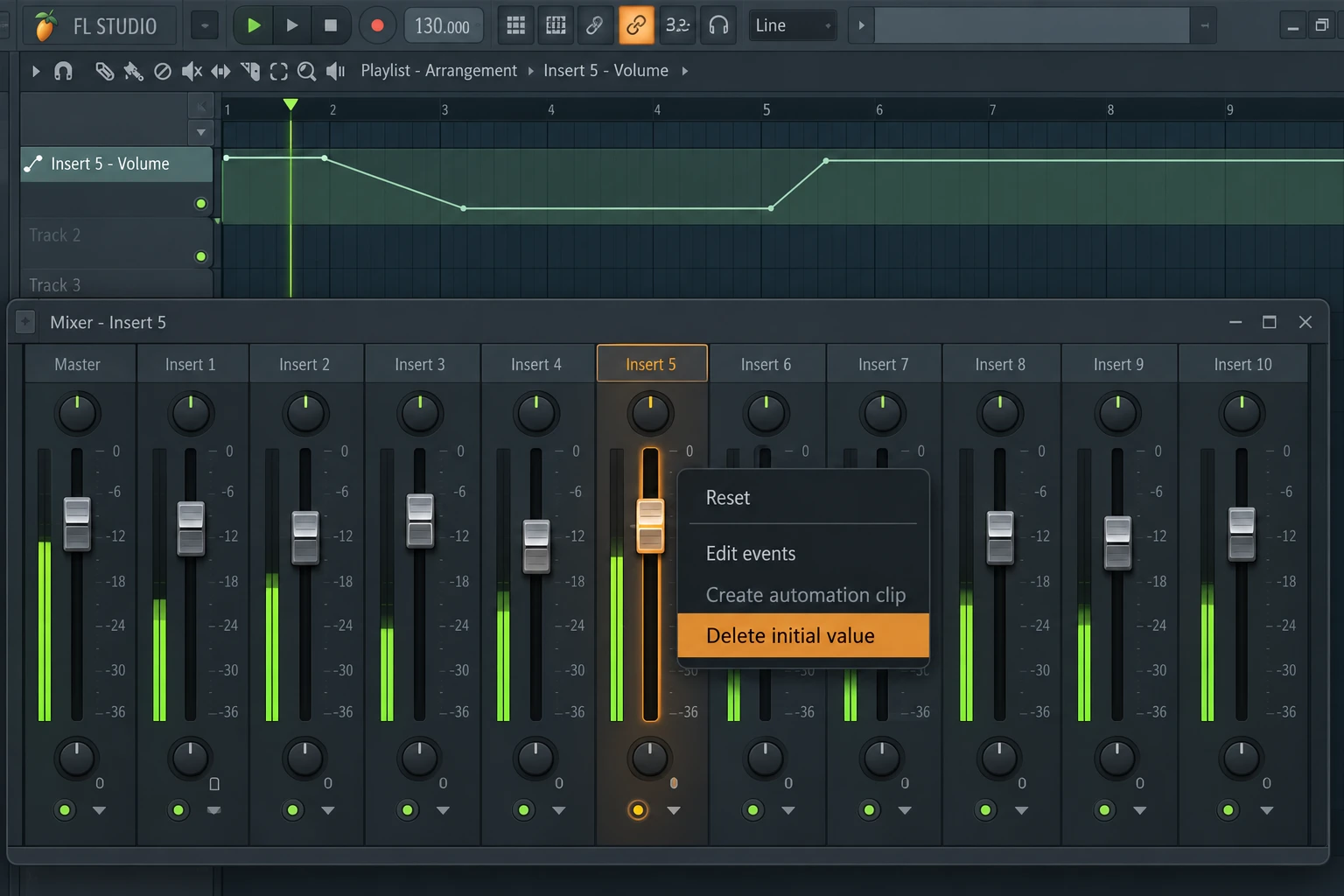

You lower a track, hit Play, and the volume jumps straight back. You lower it again. Same thing. It feels like FL Studio is ignoring your mix, but there is usually a saved value or some automation telling that control where to go.
Try this first: stop playback, right-click the fader that keeps resetting and choose Delete initial value. Set your volume again, then restart playback. If it stays put, you are done. If it still moves, the timing of the jump tells you where to look next.
Why does FL Studio keep resetting the volume?
Think of the fader as receiving instructions from two places: you, and the project. Dragging it changes the level now. A stored starting value or automation can change it again when playback runs.
- It snaps back when you press Play: check the initial value first.
- It moves at the same point in the song: look for an Automation Clip or a pattern containing volume events.
- It moves when you use a MIDI controller: inspect the controller link.
- The sound gets quieter but the fader stays still: skip to the signal-path checks below.
You do not need to rebuild the Mixer track. Start with the check that matches what you see.
1. Remove the saved initial value
This is the first thing to check when a fader jumps back as soon as playback starts. FL Studio can store a control’s starting position when you create an Automation Clip. Deleting the clip can leave that starting value behind.
- Stop the song.
- Right-click the affected volume fader or knob.
- Select Delete initial value.
- Choose your level, then stop and restart playback to test it.
For example, you might have created a fade while the track was at its original level. Later, you delete the fade and turn the track down. The saved starting value can still pull it back when you press Play.
If a plugin knob does not show FL Studio’s usual right-click menu, move it first and try Tools → Last tweaked → Delete initial value. Check that the menu names the parameter you intended to change.
Cannot find the option? Use the Browser
Open Current project in the Browser and find Initialized controls. Depending on your version, it may sit inside Patterns. Right-click the entry for the affected volume control and choose Delete event.
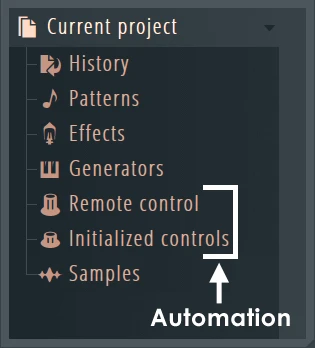
The Browser above shows why this is easy to miss: a stored starting value has its own entry, away from the Playlist. Remove the matching entry, then test playback again.
2. Already deleted the Automation Clip? Check these two things
Removing a clip from the Playlist and removing its channel are separate actions. A channel can remain available in the project after you erase its Playlist instance. That alone does not mean automation is still playing.
First, look for another instance of the same Automation Clip elsewhere in the arrangement. Then check the target’s initial value using step 1. These explain two different symptoms: a curve moving the fader during the song, and a saved value pulling it back at the start.
If you no longer need the Automation Clip anywhere, delete its channel from the Channel Rack or its entry in the Picker panel. Check its targets before doing this if you used it to control more than one parameter.
Still getting a jump whenever a particular melody or drum pattern starts? The next check is the important one.
3. Check for volume automation hidden inside a pattern
You can record a fader movement without creating a separate Automation Clip. If Automation recording is enabled, FL Studio stores that movement as event data inside the selected pattern.
Imagine recording a keyboard part while turning the instrument down. When you replay the pattern, that volume adjustment can come back with the notes. Looking only for a Playlist automation curve will not find it.
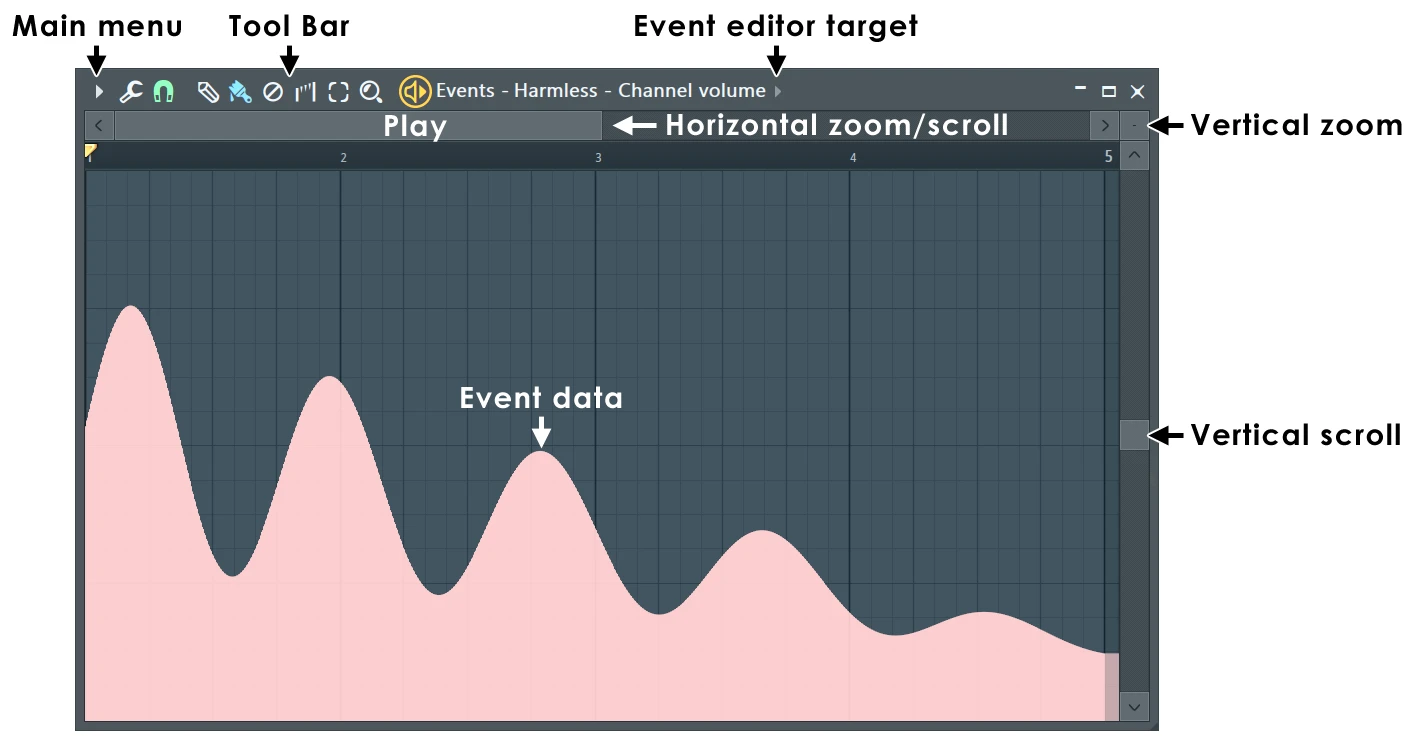
- Select the pattern that plays when the volume changes.
- Right-click the affected control and choose Edit events, or find its entry under Browser → Current project → Patterns.
- Confirm that the Event Editor is showing the correct volume parameter.
- If all the displayed volume events are unwanted, use the editor’s Edit → Select all, then Edit → Delete. Otherwise, select only the unwanted section.
- Replay the pattern and test it in the song.
An empty editor can simply mean you selected the wrong pattern or parameter. Keep the Event Editor active when deleting events so you do not accidentally delete something in another window.
4. Check whether a controller is moving the fader
If the movement does not line up with the arrangement, temporarily disable your MIDI controller’s input and replay the section. If that changes the behavior, inspect the assignment.
Right-click the control and open Link to controller. You can also look in Current project → Remote control. Note the existing setup, then remove or correct the unwanted assignment. Check internal-controller links as well as hardware links.
Does it happen in unrelated projects too? A global controller assignment is worth checking. You do not need to assume the controller itself is broken.
Stop accidental volume automation from coming back
Turn off Automation recording when you only need notes or audio
Right-click the main Record button and untick Automation in its recording filter. Leave Notes or Audio enabled for what you are recording.
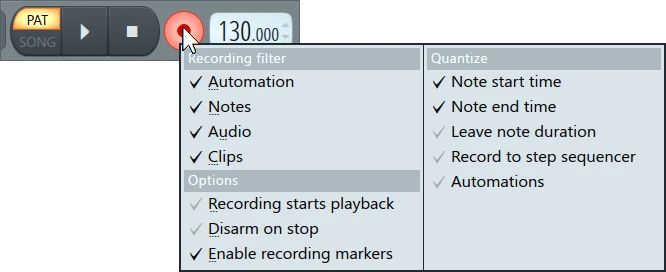
This is useful when you are recording a part and adjusting the mix at the same time. It prevents new movements being recorded; it does not remove events already saved in the project. Turn it back on when you want to record automation deliberately.
Use Fruity Balance for fades
For planned fades, my preference is to automate Fruity Balance’s Volume knob and keep the Mixer fader free for balancing the track.
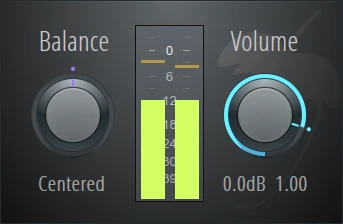
Add Fruity Balance to the track, right-click its Volume knob and create an Automation Clip. Now, if the track feels too loud later, you can lower the Mixer fader without redrawing your fade.
Plugin order still matters. A level change before distortion or compression changes how hard you drive that effect. Choose the position that gives you the result you want.
The volume changes, but the fader does not move
Then this fader may not be the source. Follow the sound through the Channel Rack volume, instrument output, effect chain, any bus tracks and the Master.
A compressor can reduce the level without moving the fader. An automated plugin output can do the same. Bypass suspect effects one at a time at a comfortable listening level and replay the same passage. When the change disappears, inspect that effect’s settings and automation.
Also compare the same notes or audio each time. Different note velocities or a quieter sample can sound like a volume problem even though the track level is unchanged.
SoundShaper opinion
The frustrating part is that FL Studio keeps starting values, Playlist automation and recorded pattern events in different places. Deleting the most obvious curve can feel like it should solve everything, but you may only have removed one instruction.
I would check the initial value first for a playback-start jump, then inspect the specific pattern for a change that repeats with the music. Once you find the instruction moving the control, you can fix that part and get back to mixing.
Frequently asked questions
Why does the volume reset after I delete the automation?
The control can retain a saved initial value after the clip is gone. Remove that value first. If the volume still changes later in the song, look for another active clip or recorded pattern events.
Is Reset the same as Delete initial value?
No. Reset returns the control to its default position. It does not necessarily remove the saved value or automation that moves it during playback.
Can I fix this without deleting my notes?
Yes. Open the correct volume event in the Event Editor and delete the unwanted control data there. Keep that editor active and confirm its target before deleting anything.
Does this work for panning or plugin controls too?
Yes, the same checks apply to other automated parameters. Work on the exact control that moves; removing a volume initialization will not remove a separate panning event.
Interface images: Image-Line’s FL Studio manual. Menu layouts can differ between versions. Further help: initialized controls, Automation Clips and the Event Editor.
![[background image] image of recording equipment (for a musician & band)](https://cdn.prod.website-files.com/68efa70811edd8e5af30a90d/6ae7c2c1c4281d9b098e8737_6ae7c2aa522bb0c8cb94522c_delay-under-50-cover.webp)
![[background image] image of recording equipment (for a musician & band)](https://cdn.prod.website-files.com/68efa70811edd8e5af30a90d/6ae7869f56ddcdda00952bf1_6ae786869aab39fb0b67f17f_soundshaper-synth-under-100-cover.webp)
![[background image] image of recording equipment (for a musician & band)](https://cdn.prod.website-files.com/68efa70811edd8e5af30a90d/6ae751a831e0a05227c8c3a2_6ae75192813e1e16ffa57cfe_soundshaper-compressor-under-50-cover.webp)